

Email triage. Data copying. The weekly report nobody reads but everyone expects. If a task is digital, predictable, and boring, it’s a candidate for automation — and the tools no longer require a programmer.
How to Automate Repetitive Tasks With AI: Practical Guide
Learning how to automate repetitive tasks with AI is one of the most practical productivity skills you can build in 2026. Most professionals lose five to fifteen hours a week to work that is predictable, digital, and frankly boring: triaging email, copying data between systems, assembling weekly reports, scheduling meetings. This guide walks you through a complete, research-based method — how to identify which tasks are worth automating, the no-code patterns that handle most of them, concrete examples you can adapt, and how to measure whether your automation actually pays off. Everything here is based on published documentation from automation platforms and established process-improvement practices, not personal anecdotes or fabricated testing.

Step 1: Identify Which Tasks Are Worth Automating
The biggest mistake in automation is automating the wrong thing — a broken process, automated, just breaks faster. Start with an inventory. For one typical week, keep a simple log of recurring tasks: what you did, how long it took, and how often it repeats.
The Automate-ability Test
Score each candidate task against these five criteria. The more it checks, the better the automation candidate:
- Frequency. Does it happen daily or weekly? A task that takes 30 minutes every day costs you ~130 hours a year. A monthly 30-minute task costs 6 hours. Frequency dominates the ROI math.
- Rules-based structure. Can you write down the decision logic? “If the invoice is from a known vendor and under $500, approve it” is automatable. “Use your judgment about this design” is not.
- Digital inputs and outputs. The task starts and ends in software — email, spreadsheets, CRM, databases. Physical-world steps (signatures on paper, phone calls requiring nuance) are automation-resistant.
- Stable process. If the steps change every time, automation will be brittle. Stable, well-understood processes automate cleanly.
- Error cost of doing it manually. Tasks where humans make expensive mistakes — typos in data entry, missed follow-ups — gain extra value from automation’s consistency.
The Four-Quadrant Prioritization Matrix
Plot your candidate tasks on two axes: time consumed (high/low) and automate-ability (high/low). Your priority order:
- High time, high automate-ability: Automate first. This is where inbox triage, reporting, and data entry live.
- High time, low automate-ability: Redesign the process before automating. Simplify the workflow, then automate the simplified version.
- Low time, high automate-ability: Automate in batches when convenient — these are quick wins, like auto-filing receipts.
- Low time, low automate-ability: Leave alone. The setup cost exceeds the payoff.
A realistic first project list for most office workers: email triage and routing, meeting scheduling, weekly status reports, expense data entry, lead list cleanup, and social-media content repurposing. All of these are digital, frequent, and rules-based.
Step 2: Understand the Core Automation Patterns
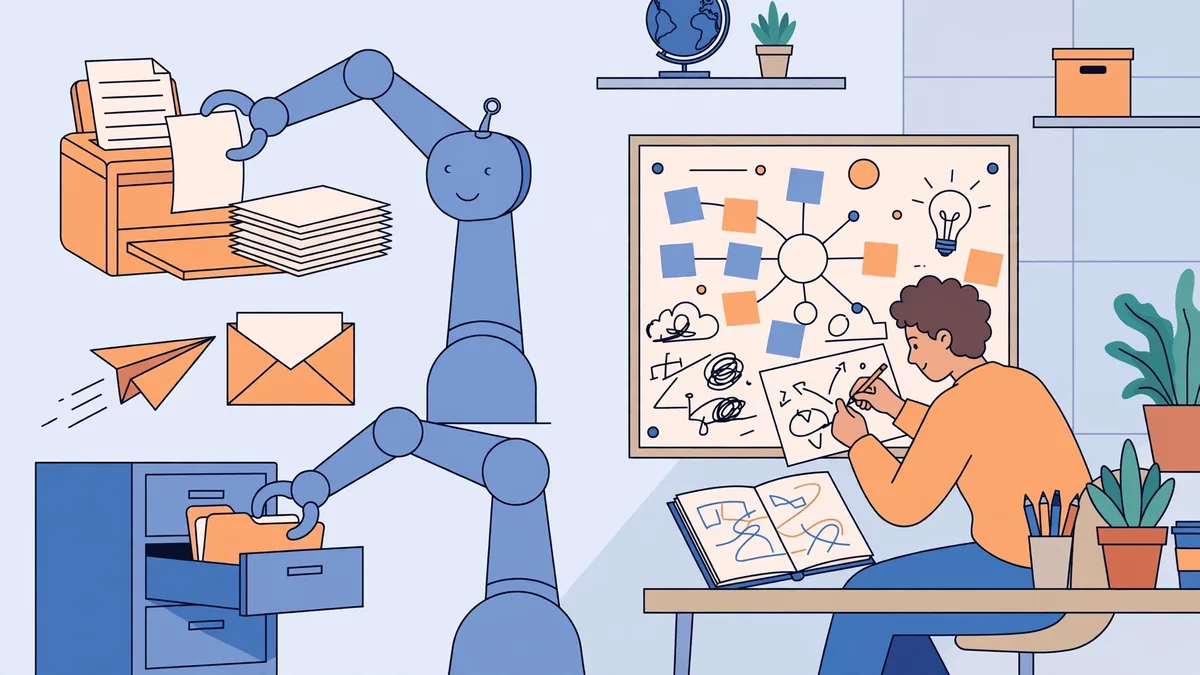
You do not need to learn programming to automate most repetitive work. Modern no-code platforms — Zapier, Make, Microsoft Power Automate, and open-source n8n — implement a small set of patterns that cover the vast majority of use cases.
Pattern 1: Trigger → Action
The simplest pattern. When X happens, do Y.
- A new email with an invoice attachment arrives → save the attachment to a Drive folder and log the amount in a spreadsheet.
- A new row appears in a Google Sheet → send a Slack notification to the team channel.
- A form is submitted on your website → create a contact in the CRM and send a confirmation email.
Most users start here because the logic maps directly onto how they already think about their work.
Pattern 2: Scheduled Batch Processing
Instead of reacting to events, run on a clock: every morning at 8 a.m., every Friday at 4 p.m.
- Every Monday morning, compile last week’s sales data into a summary email.
- Every evening, archive emails older than 30 days from the inbox to a “Processed” folder.
- Every Friday, generate invoice reminders for overdue accounts.
Batch patterns suit reporting, cleanup, and reminder workflows — anything where timing is predictable.
Pattern 3: AI-Assisted Triage With Human Approval
This is where AI earns its keep over plain automation. Classical automation follows rigid rules; AI handles the fuzzy middle. The pattern: AI reads, classifies, or drafts — and a human approves before anything irreversible happens.
- An AI model reads each incoming support email, classifies it (billing, technical, sales), drafts a response, and queues it for one-click approval.
- AI scans a contract, extracts key dates and obligations, and flags anything unusual for legal review.
- AI reads a meeting transcript, extracts action items with owners and deadlines, and posts them to the project board for confirmation.
The human-in-the-loop design matters enormously. Fully autonomous AI on high-stakes tasks is where expensive mistakes happen. Approval gates give you AI speed with human judgment.
Pattern 4: Multi-Step Chains (Agentic Workflows)
For complex work, chain steps together: extract data → enrich it → decide → act → log. Newer “agent” features in automation platforms let an AI model plan the sequence itself given a goal, calling tools (search, databases, APIs) as needed.
An example: “Prepare the weekly sales report” becomes a chain that pulls CRM data, calculates week-over-week changes, drafts narrative commentary, generates charts, and emails the result — with a human reviewing the draft before it sends. Treat agentic workflows as powerful but experimental: always keep the approval gate until the chain has proven itself on dozens of runs.
Step 3: Concrete Examples You Can Adapt
Example A: Inbox Triage
Email is the classic time sink. A practical AI triage setup:
- Classify automatically. Use your automation platform’s AI classifier (or an AI step in Zapier/Make) to label incoming mail: newsletters, receipts, client messages, internal FYI, urgent.
- Route by label. Newsletters skip the inbox to a “Read Later” folder. Receipts go to finance. Client messages get flagged and summarized.
- Draft replies for routine mail. Meeting requests, status-update asks, and common questions get AI-drafted replies waiting in your drafts folder. You review and send — typically in seconds rather than minutes.
- Summarize threads. Long threads get a one-paragraph brief at the top, so you catch up in thirty seconds.
Published guidance from email-productivity research consistently shows triage setups like this cutting daily email time roughly in half for heavy users. The key discipline: never let the AI send externally without your approval until you have verified hundreds of drafts.
Example B: Data Entry and Cleanup
Copying data between systems — from email into a CRM, from PDFs into spreadsheets — is pure automation territory:
- Extraction. AI document-processing reads invoices, resumes, or order emails and extracts structured fields (vendor, amount, date, line items).
- Validation. Rules check the extracted data: is the amount numeric? Is the vendor in the approved list? Does the total match the line items?
- Entry. Clean data flows into the destination system via native integration or API.
- Exception queue. Anything that fails validation lands in a review queue for a human — the 5% of cases that actually need judgment.
This pattern shines in accounts payable, lead-list building, and inventory updates. The exception queue is the secret: it converts a 100%-manual task into a 5%-manual task.
Example C: Automated Reporting
Weekly and monthly reports are assembled from the same sources every time — ideal for automation:
- Data pulls. Scheduled triggers fetch metrics from analytics, CRM, ad platforms, or databases.
- Calculation. The platform computes comparisons (week-over-week, target-vs-actual) and flags anomalies — metrics that moved more than a set threshold.
- Narrative drafting. An AI step writes the plain-English summary: what changed, what drove it, what needs attention.
- Distribution. The report posts to Slack, emails stakeholders, and archives to a shared folder — with you reviewing the draft first.
Teams that automate reporting typically report two benefits: the report arrives earlier and more consistently, and the human time shifts from assembling numbers to interpreting them.
Example D: Meeting Scheduling
Back-and-forth scheduling emails (“Does Tuesday work? How about Thursday?”) are a solved problem:
- Publish a booking link with your availability rules (working hours, buffer times, meeting types).
- Connect it to your calendar so availability is always current.
- Add an AI layer: for internal meetings, a bot can propose times in chat; for external ones, the booking page handles time-zone conversion automatically.
- Automate reminders and follow-ups — confirmation on booking, reminder 24 hours before, and a no-show follow-up template.
Example E: Content Repurposing
If you publish content regularly, repurposing is highly automatable:
- A new blog post or video transcript triggers the workflow.
- AI extracts key points and drafts platform-specific versions: a LinkedIn post, an X thread outline, newsletter blurbs, quote graphics briefs.
- Drafts queue in your content calendar for review and scheduling.
- Performance data flows back to inform future topics.
One piece of source content becomes five to ten derivative assets with review-only human effort.
Step 4: Choose Your Tools
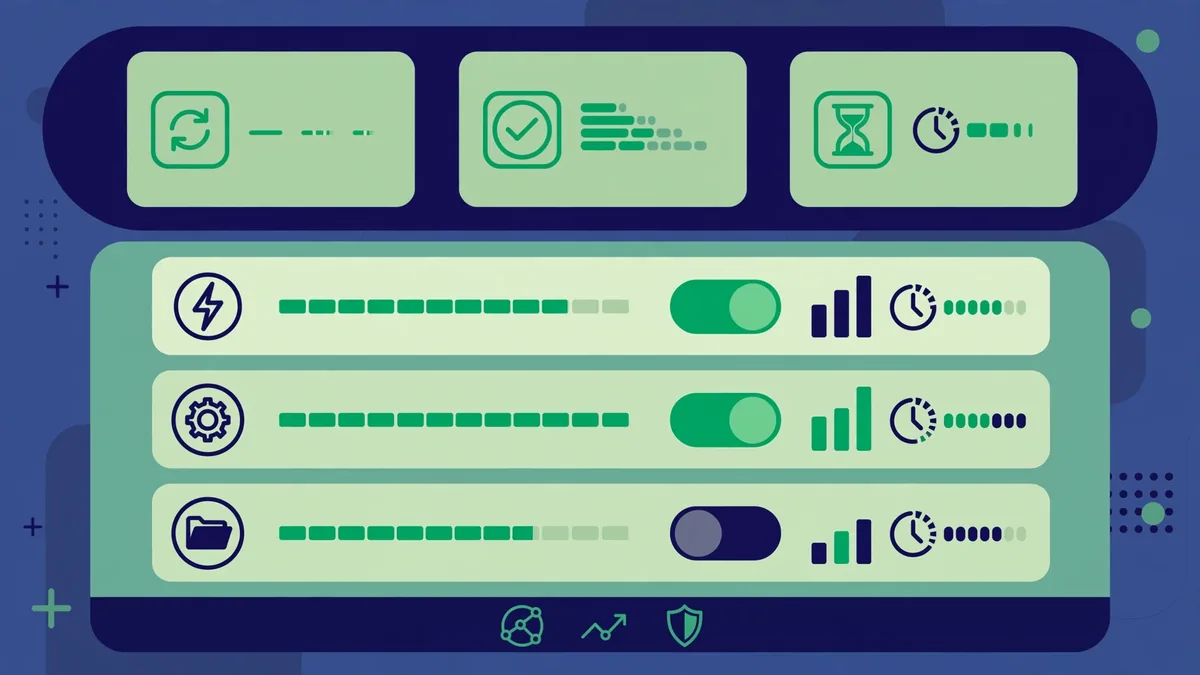
No-Code Automation Platforms
- Zapier — the largest integration library (thousands of apps), easiest learning curve, AI steps for classification and drafting. Pricing is task-based; published plans scale with monthly task volume. Best for non-technical users who want maximum app coverage.
- Make (formerly Integromat) — visual scenario builder with more granular data manipulation than Zapier, generally more generous operation allowances at each tier. Best for complex multi-step logic on a budget.
- Microsoft Power Automate — native to the Microsoft 365 ecosystem; desktop flows can automate legacy applications through the UI. Often included in enterprise Microsoft licenses. Best for organizations standardized on Microsoft.
- n8n — open-source, self-hostable, with a fair-code license. No per-execution fees when self-hosted, which makes it attractive for high-volume workflows. Best for technical teams comfortable running infrastructure.
Where the AI Lives
In most setups, the AI is a step inside the automation, not the whole platform: an LLM call that classifies, extracts, summarizes, or drafts. You can use the model built into your automation platform or call an external AI API. The practical advice: start with the platform’s built-in AI features (simpler billing, simpler setup), and move to direct API calls only when you need model choice, lower per-call cost at scale, or specific capabilities.
Step 5: Build Safely — Guardrails That Prevent Disasters
Automation amplifies whatever you feed it, including mistakes. Before turning any workflow live:
- Start in dry-run mode. Log what the automation would do for a week before it acts. Review the log for surprises.
- Keep human approval on irreversible actions. Sending emails to customers, issuing refunds, publishing content, deleting data — all of these get an approval gate. Always.
- Set rate limits and budgets. Cap AI API calls per day. A runaway loop calling a paid model thousands of times is an expensive lesson.
- Handle failures explicitly. Every workflow needs an error path: what happens when the API is down, the data is malformed, or a step times out? Notify a human; never fail silently.
- Document each automation. One page per workflow: what it does, what triggers it, what systems it touches, who owns it. Future you (or your replacement) will be grateful.
- Respect data privacy. Automations that process personal data must honor the same rules as manual processing — access controls, retention limits, and deletion requests. Check your platform’s data-residency and logging options.
Step 6: Measure ROI Honestly
Automation ROI is simple arithmetic, but it requires honest inputs:
Time saved = (minutes per manual run × runs per month) − (minutes of human review per automated run × runs per month) − (setup and maintenance hours amortized monthly).
Value = time saved × fully-loaded hourly cost of the person whose time was freed + error-reduction value + speed value (faster response times, earlier reports).
Track three numbers monthly per automation: runs completed, exceptions requiring human intervention, and estimated minutes saved. Kill or fix any automation whose exception rate stays above ~10% — a workflow that needs constant babysitting is not automation, it is a pet.
Common ROI benchmarks from published case studies: email triage and reporting automations typically pay back setup time within 2–4 weeks; data-entry pipelines within 1–2 months; complex multi-system chains within a quarter. Your mileage will vary with labor costs and process stability.
Scaling Up: From Personal to Team Automation
Once personal automations are humming, the next level is team-wide:
- Standardize before scaling. An automation that works for your inbox may break on a colleague’s different folder structure. Agree on conventions first.
- Build a shared library. Document working automations as templates the team can clone and adapt — this compounds the return on every hour invested.
- Assign ownership. Every production automation needs a named owner who monitors its health, handles exceptions, and updates it when underlying systems change.
- Govern AI usage. Set team policies: which data the AI may process, which actions always need approval, and how outputs are reviewed. This is especially important in regulated industries.
- Review quarterly. Business processes drift. A quarterly audit — still running? still accurate? still needed? — keeps the automation portfolio healthy.
Frequently Asked Questions About Automate Repetitive Tasks
Do I need to know how to code to automate tasks with AI?
No. The no-code platforms covered in this guide — Zapier, Make, Power Automate — are designed for non-programmers, and their built-in AI steps handle classification, extraction, and drafting without code. Coding helps only when you need custom logic, direct API access, or self-hosted infrastructure (n8n), and even then, AI coding assistants can help you write the necessary scripts.
What is the easiest repetitive task to automate first?
Email triage and meeting scheduling are the classic starting points: they are frequent, well-understood, low-risk, and the tools are mature. Weekly reporting is another strong first project because the data sources and format are stable. Pick whichever one currently annoys you most — motivation sustains the learning curve.
How much does it cost to automate tasks with AI?
Most individuals start on free tiers: Zapier, Make, and Power Automate all offer free plans with limited monthly operations, and AI model APIs charge fractions of a cent per typical classification or summarization call. A serious personal automation setup usually lands in the $20–$50/month range; team deployments scale with volume. The dominant cost is your setup time, not subscriptions.
Is it safe to let AI handle business data?
It can be, with the right guardrails: use platforms with published security documentation (SOC 2 reports are the standard benchmark), keep human approval on irreversible actions, restrict which data fields the AI can access, and verify data-residency options if you handle regulated data. Never feed credentials, private keys, or highly sensitive personal data into prompts unless the platform’s security posture explicitly supports it.
What tasks should NOT be automated with AI?
Anything requiring genuine judgment, empathy, or accountability: performance reviews, sensitive customer conversations, legal interpretation, medical decisions, and final hiring choices. Also avoid automating unstable processes — simplify the process first. A good rule: if you cannot explain the decision logic to a colleague, do not hand it to an AI.
How do I convince my manager or team to adopt automation?
Lead with measured results, not promises. Automate one painful task for yourself, track the time saved for a month, then present the numbers: “This saves me 3 hours a week; scaled to the team, that is 60 hours a month.” A working demo beats a slide deck every time. Frame it as freeing people for higher-value work, not eliminating roles.
For connecting apps without code, Zapier’s automation library covers 6,000+ integrations you can wire up in minutes.
Keep exploring: If you found this guide to automate repetitive tasks useful, read n8n vs Zapier: Best AI Automation Platform 2026, AI Agents Explained: What They Are and How to Use Them, Prompt Chaining: Multi-Step AI Workflows Guide (2026) for more practical ways to use automate repetitive tasks.
What is the easiest way to automate repetitive tasks with AI?
Start with one painful, frequent task: to automate repetitive tasks, map the steps, then use an automation platform to connect your apps with an AI step for the judgment calls. The first win when you automate repetitive tasks should take under an hour to build — momentum matters more than perfection.
Which processes should you target first when you automate repetitive tasks?
Target high-frequency, rule-based work first: data entry, status updates, report generation. When you automate repetitive tasks, pick processes that happen daily and take 15+ minutes. Save the complex edge cases for later — automate the boring middle first.
How much time can you save when you automate repetitive tasks?
Teams that systematically automate repetitive tasks typically reclaim 5–10 hours per person weekly within a quarter. The compounding effect is the real prize: every time you automate repetitive tasks, that time stays saved forever, unlike one-off productivity hacks.
Conclusion
Automating repetitive tasks with AI is not about chasing futuristic technology — it is about systematically reclaiming hours from work that software does better than humans. Start with an honest inventory, prioritize by frequency and rules-based structure, and build on no-code platforms using the patterns in this guide: trigger-action, scheduled batches, AI triage with human approval, and multi-step chains. Guard every automation with dry runs, approval gates, and error handling, and measure the time saved so you know what is working. Do that consistently, and the compound effect is transformative: less busywork, fewer errors, faster turnaround — and your attention freed for the work that actually requires a human mind.
What’s the biggest mistake when you automate repetitive tasks?
Automating a broken process. When you automate repetitive tasks, fix the workflow first — automation magnifies inefficiency. Map the process, remove pointless steps, then automate repetitive tasks on the streamlined version.





Join the discussion
Have a question or a perspective to share?