
How to Use AI to Manage Your Email Inbox: Triage to Zero
The average professional spends 3+ hours a day on email — much of it sorting, not doing. Learning how to use AI to manage your email inbox reclaims those hours: triage that sorts itself, drafts that write themselves, and an inbox that hits zero without you living inside it.
Inbox Zero isn’t about answering everything instantly. It’s a system: every email gets classified, acted on, delegated, or archived — nothing sits in limbo. The reason most people never achieve it isn’t discipline, it’s volume: 120 emails a day can’t be manually triaged by a human with other work to do. AI changes the equation by handling the mechanical 80% — sorting, prioritizing, drafting — so your judgment applies to the 20% that actually needs it. When you know how to use AI to manage your email inbox as a system rather than a chore, email becomes a 30-minute task instead of a lifestyle.
This guide gives you the complete 2026 playbook: the triage architecture, AI classification and prioritization, draft-and-send workflows, newsletter and notification management, automation rules, and the daily/weekly rituals that keep you at zero.
The Triage Architecture: Classify Everything Once
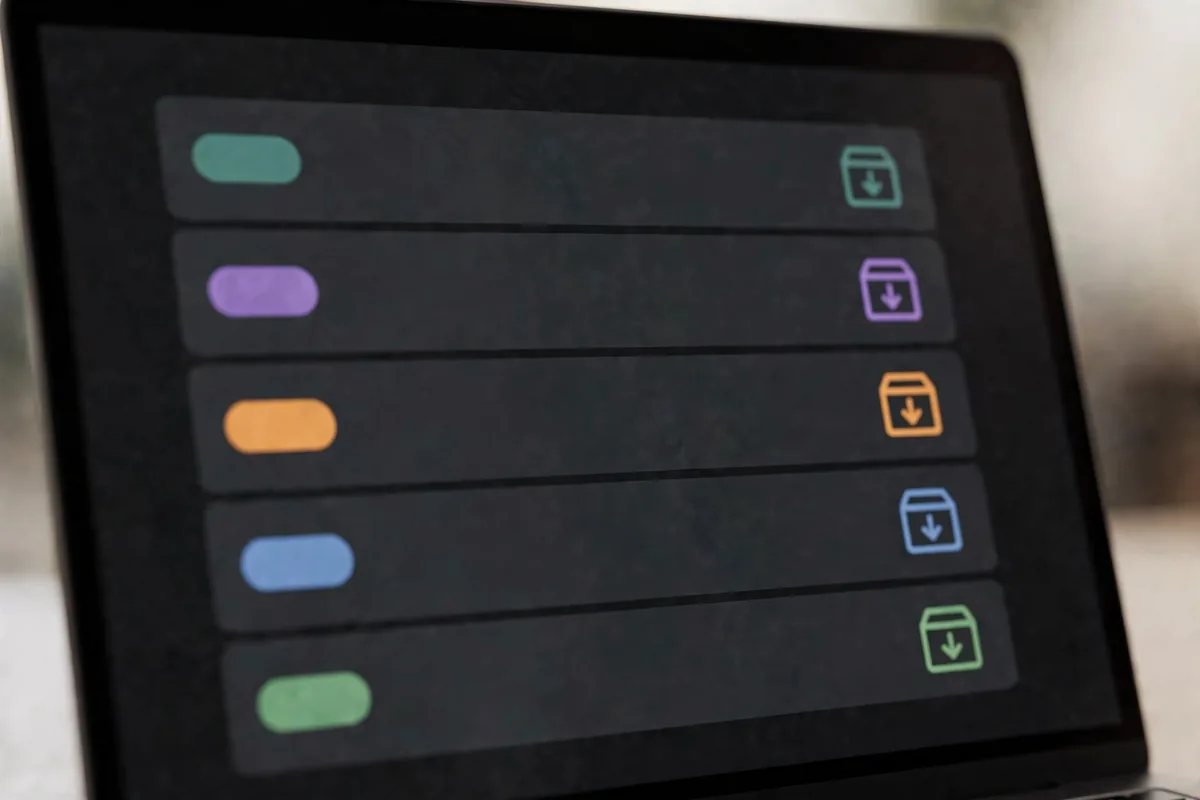
Every email belongs in exactly one bucket. Define yours:
| Bucket | Meaning | AI Action |
|---|---|---|
| Act now | Needs you today (<5 min) | Flag + draft reply |
| Act later | Needs you this week | Schedule + summarize |
| Delegate | Someone else should handle | Draft forward with context |
| Reference | Keep, no action needed | Auto-label + archive |
| Noise | Newsletters, notifications, FYIs | Batch into digest |
The classification prompt (run via your email AI tool or API):
“Classify this email into exactly one bucket: [Act now / Act later / Delegate / Reference / Noise]. Also output: a 1-line summary, the sender’s likely intent, suggested action with deadline, and draft reply if the action is under 3 minutes. Email: [headers + body].”
Start in review mode: AI classifies, you confirm or correct, for one week. The corrections train your mental model of the AI’s accuracy — and most people find 90%+ agreement by day 3. Then graduate: auto-archive Noise, auto-label Reference, and surface only Act Now + Act Later for your review. That’s how you learn how to use AI to manage your email inbox without surrendering control — the AI proposes, you dispose, until trust is earned.
The Daily Ritual: 30 Minutes, Twice a Day
Systems beat willpower. The ritual:
Morning session (20 min) — triage and dispatch:
1. Open the AI-sorted Act Now bucket. Handle or reply to each — most have drafts waiting; review, personalize, send.
2. Scan Act Later: anything that became urgent overnight gets promoted.
3. Check the Noise digest (one bundled summary, not 40 emails): anything misclassified gets corrected — corrections improve the system.
Evening session (10 min) — clear and close:
1. Process anything that arrived since morning.
2. Archive everything handled. The inbox shows only what’s genuinely pending.
3. Glance at tomorrow’s Act Later items so nothing ambushes you.
The draft-and-send workflow is where the real time savings live — and it’s the centerpiece of learning how to use AI to manage your email inbox efficiently:
“Draft a reply to this email: [paste]. Context: [your role, relationship with sender, any constraints]. Tone: [professional/warm/brief]. Requirements: answer their question directly in the first line, keep under 100 words, include [specific info], end with clear next step. Do not commit to [things you can’t promise].”
Review every draft before sending — especially for tone with sensitive recipients and for factual claims. The 30-second review is non-negotiable; it’s also 10x faster than writing from scratch. Teams that adopt AI drafting report email composition time dropping 60–70%.
For the tools layer, our AI email assistants roundup compares the platforms that automate this workflow.
Killing the Noise: Newsletters, Notifications, Notifications

Roughly half of most inboxes is noise — and noise is the easiest problem to solve permanently:
The unsubscribe audit (one-time, 1 hour): “Here is a list of my 80 newsletter subscriptions: [paste]. Categorize: read regularly / skim occasionally / never read. For the ‘never read’ group, draft nothing — just unsubscribe. For ‘skim occasionally,’ suggest which 5 are worth keeping based on [my role/interests].” Be ruthless: if you haven’t opened it in a month, you won’t miss it.
Notification rerouting: transactional notifications (order updates, social alerts, system pings) shouldn’t hit the inbox at all. Route them to a separate label/folder with a daily digest, or better, to their native apps. The inbox is for humans writing to you — everything else is infrastructure that belongs elsewhere.
The FYI filter: colleagues who CC you “just in case” create a special hell. Set the expectation once (“CC me only when you need something”), and let AI auto-archive the rest into a Reference label you check weekly. Nobody will notice, and you’ll reclaim an hour a day.
Digest everything remaining: one morning digest email summarizing the Noise bucket beats 40 individual interruptions. Most email AI tools generate this automatically — if yours doesn’t, the prompt is: “Summarize these 35 emails as a 10-line morning digest: sender, 5-word topic, action needed (yes/no): [paste headers].”
Priority and Focus: Protecting Attention
Triage handles volume; prioritization protects focus. The two-layer system:
Layer 1 — VIP detection. “From this week’s emails: [paste senders/subjects], identify messages from: my direct reports, key clients ([list]), my manager, and anyone mentioning [urgent keywords: contract, deadline, escalation]. These bypass all filters to Act Now.” Never let an important email drown in the digest.
Layer 2 — Deep work defense. The real cost of email isn’t the minutes spent — it’s the attention fragmentation. Rules that work:
– Email closed during focus blocks (the triage system means nothing urgent is missed — VIPs bypass).
– No email before your first deep-work session. The inbox sets other people’s agenda; your morning sets yours.
– Batch notifications: check the digest twice daily, not 40 times.
AI enables this discipline because the system is trustworthy — you can close email knowing classification and VIP detection are running. Without that trust, “inbox closed” creates anxiety instead of focus. That’s the deeper payoff of learning how to use AI to manage your email inbox: not just speed, but the confidence to disconnect.
Automation Rules That Compound

Beyond AI classification, build deterministic rules for the predictable:
- Receipts and confirmations → auto-label “Receipts,” skip inbox, monthly archive.
- Calendar invites → auto-process; the calendar is the source of truth, not the inbox.
- Recurring reports → auto-label by sender, weekly digest summary via AI: “Summarize these 5 weekly reports in 10 lines: key numbers, anomalies, action items: [paste].”
- Out-of-office loops → filter out “automatic reply” subjects automatically.
- Thread management → mute threads where you’re CC’d but not needed; AI can suggest: “Which of my 15 active threads can I safely mute based on my (non-)participation?”
Review automation monthly: “Audit my email filters and rules: [paste]. Which are still useful? Which misfire? What new pattern should become a rule?” The system evolves with your role — static rules decay.
Our productivity automation guide covers the wider workflow automation these rules plug into.
The Weekly Review (20 Minutes, Friday)
Daily rituals maintain zero; the weekly review improves the system:
- Accuracy check: “This week the AI classified 400 emails: [paste sample of corrections I made]. What patterns in my corrections should become rule updates?”
- Volume analysis: which senders/topics dominate? Any new noise source to unsubscribe or filter?
- Draft quality: am I editing drafts heavily? If yes, the prompt needs your voice better — feed it 5 examples of your sent emails: “Learn my email voice from these: [paste]. Update the drafting guidelines.”
- Zero verification: is the inbox actually at zero, or is “Act Later” becoming a graveyard? Anything older than 2 weeks gets decided: do, delegate, or delete.
This 20-minute investment is what separates people who tried AI email tools for a week from people whose inboxes stay at zero permanently. The system learns, but only if you teach it.
Email on Mobile: The Triage Trap
Mobile email is where inboxes go to die — quick glances, accidental archives, “I’ll handle this later” that never happens. The mobile rules: triage only, never compose important replies on the phone (the drafts can wait for a keyboard), and use the AI digest as your mobile interface — read the 10-line summary instead of opening 40 emails. If your email app supports it, set up swipe actions mapped to your buckets (swipe right: archive/Reference, swipe left: Act Later). And turn off the badge count — the red number is an anxiety machine, not information. When you know how to use AI to manage your email inbox properly, the phone becomes a triage terminal, not a second office: glance at the digest, handle the true urgents, and leave the rest for the twice-daily ritual. The goal is that your phone never shows you an email the system hasn’t already classified.
Common Mistakes
- Auto-sending without review. The 30-second draft review is the load-bearing wall. Remove it and one bad send erases months of trust.
- Over-filtering. Aggressive rules that hide important mail create more anxiety than they save. Start conservative, tighten gradually.
- Ignoring the noise audit. AI triage on top of 80 unread newsletters is rearranging deck chairs. Unsubscribe first, then systematize.
- No VIP layer. The fastest way to lose faith in the system is missing one critical email. VIP detection is mandatory, not optional.
- Treating Act Later as storage. It’s a scheduled queue, not an archive. Review it daily or it becomes inbox-zero theater.
- Checking email 40 times a day. The system enables batching; batching requires discipline. Close the tab.
If prompting is new to you, our 12 prompt techniques underpin every prompt here.
FAQ
Can AI really get me to inbox zero?
Yes — with the system above, most professionals reach a maintained zero within 2 weeks. The AI handles classification and drafting (the volume problem); the rituals handle the rest. The hard part isn’t the AI, it’s the unsubscribe audit and the discipline to batch.
Is it safe to let AI read my emails?
Use your email provider’s native AI features or enterprise API tiers with appropriate data controls — not consumer chatbots for sensitive mail. For highly sensitive emails (legal, HR, financial), keep AI assistance to drafting from your summaries rather than feeding full threads.
What if the AI misclassifies an important email?
The VIP layer and review-mode onboarding exist for this. Start with AI proposing and you confirming; only auto-archive the lowest-risk buckets (Noise, Reference). One missed important email in review mode teaches you more than a week of perfect classification.
How much time does this actually save?
Typical: email time drops from 3+ hours to 30–60 minutes daily — a 70%+ reduction. The savings come from classification (no more manual sorting), drafting (no more blank-page replies), and noise elimination (the unsubscribe audit alone often saves 30+ minutes).
Should I use AI to write sensitive emails (firing, negotiations)?
AI can draft structure and suggest phrasing, but sensitive emails need your full judgment — and often shouldn’t be email at all. Use AI for the routine 90%; the sensitive 10% gets your undivided attention, possibly with AI as a second pair of eyes on tone.
Conclusion
For the latest model capabilities, check vendor documentation such as OpenAI and the Google AI blog.
Knowing how to use AI to manage your email inbox means building a system, not downloading an app: classify everything into buckets, run the twice-daily ritual, draft-and-review instead of writing from scratch, kill noise at the source with the unsubscribe audit, protect focus with VIP detection and batching, automate the predictable, and improve weekly. The goal was never just speed — it’s the confidence to close your inbox and do deep work, knowing the system has it handled. Run the unsubscribe audit this weekend, set up classification on Monday, and by Friday you’ll have experienced what it feels like to truly know how to use AI to manage your email inbox: thirty minutes, twice a day, zero at night — and your attention back where it belongs.





Join the discussion
Have a question or a perspective to share?