
Best AI Background Removers: 7 Fast Online Picks
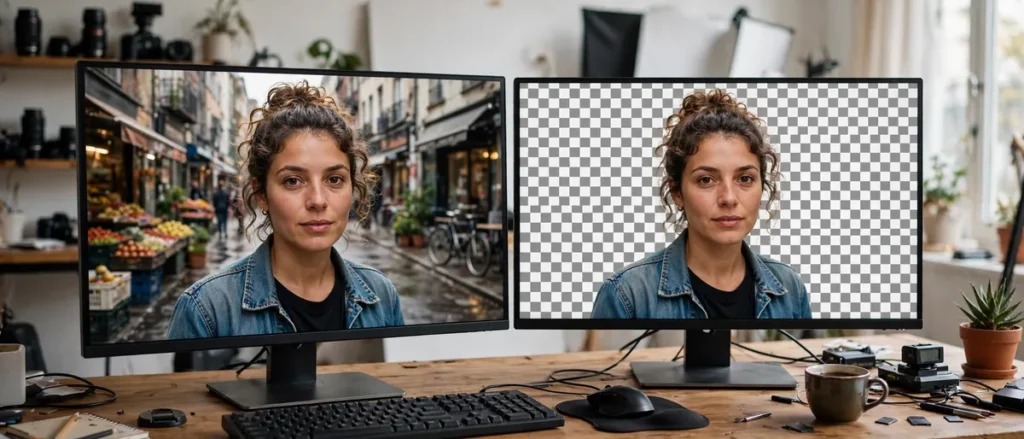
Cutting out a background used to be the tedious rite of passage for every photo editor — hours with the pen tool, zoomed to 400%, tracing hair strand by hair strand. The best ai background remover tools have reduced that job to an upload and a click, with edge detection smart enough to handle flyaway hair, translucent glass, and fur. Whether you are preparing product shots for an online store, building marketing creative, or just cleaning up portraits, there is now an online tool that does in seconds what once took an afternoon.
But “AI background removal” is not one technology, and results vary enormously. Some tools nail crisp studio shots but melt down on busy backgrounds; others handle complex edges beautifully but watermark everything unless you pay. We tested the leading ai background remover tools against the same brutal test set — a product shot on a cluttered desk, a portrait with windblown hair, a dog mid-shake, and a glass bottle — scoring each on edge accuracy, processing speed, and how usable the free tier really is.
If you create visuals with AI from scratch rather than editing photos, our roundup of free AI image generation tools covers the other half of the workflow.
How We Tested These AI Background Remover Tools
Every tool processed the same four test images, and we scored three dimensions:
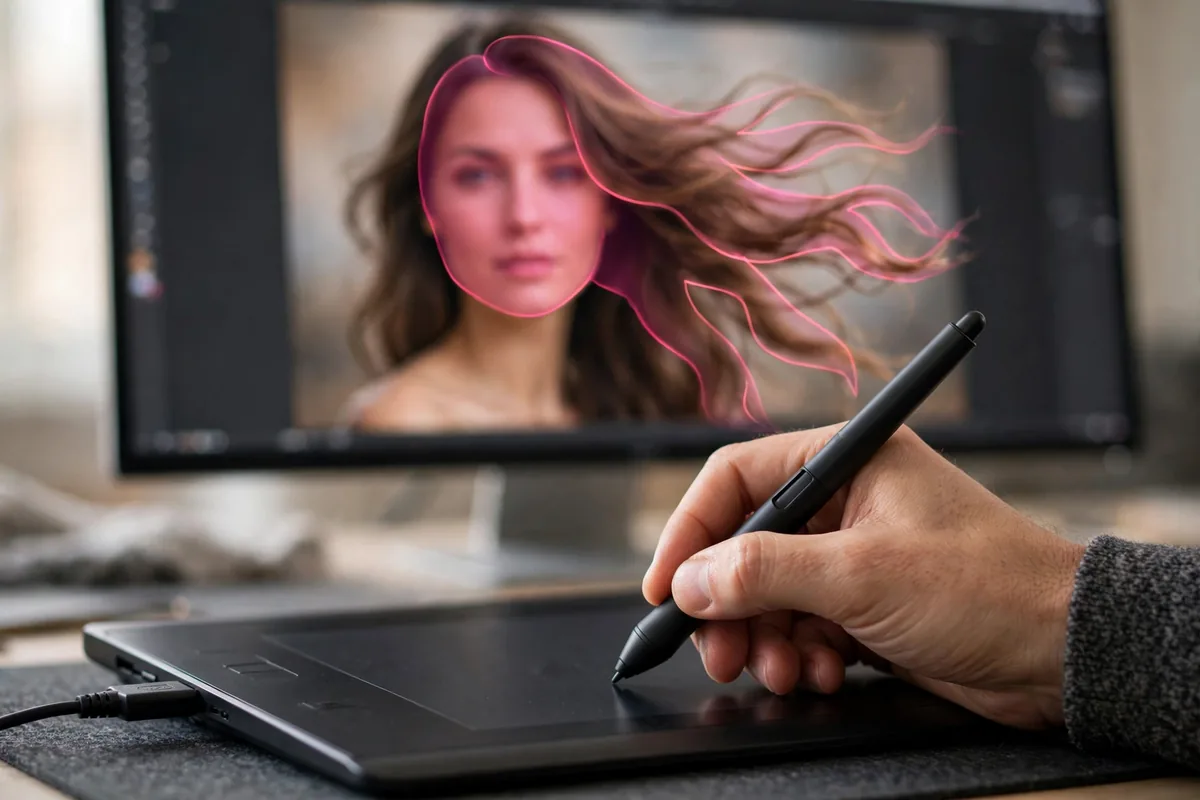
- Edge accuracy (50%) — How clean are the cutout edges? We zoomed to 200% and checked hair, fur, glass edges, and semi-transparent areas. Halos, jagged edges, and eaten-away details lost points fast.
- Speed (25%) — Time from upload to downloadable result on a standard broadband connection. Anything under 10 seconds earned full marks.
- Free-tier usefulness (25%) — Can you actually get work done without paying? We checked resolution limits, watermarks, and monthly quotas.
We also noted batch-processing support (critical for e-commerce sellers with hundreds of SKUs) and whether the tool offers an API for developers.
The 7 Best AI Background Remover Tools
1. Remove.bg — Best Overall Accuracy
Remove.bg remains the benchmark the industry measures itself against, and our tests confirmed its reputation. It handled the windblown-hair portrait better than anything else — individual strands preserved, no visible halo — and the glass bottle test came back with believable transparency rather than the muddy gray most tools produce. Processing is consistently under 5 seconds.
The free tier allows a limited number of low-resolution downloads per month, which is fine for social media but not for print or large product catalogs. Paid plans unlock full-resolution downloads and the API. If you need the single most reliable cutout and do not mind paying for volume, start at remove.bg. For most professional use, this is the tool to beat.
2. Adobe Express Background Remover — Best for Creative Cloud Users
Adobe’s free online background remover punches well above its price of zero. Edge quality sits just a notch below Remove.bg — hair is slightly softer, complex transparency slightly less convincing — but it is free, fast, and integrates directly with Adobe Express’s design tools. Remove the background, then immediately drop the subject onto a new backdrop, add text, and export a finished social post without leaving the tab.
The standout feature is the refine brush: when the AI misses a spot, you can paint corrections that blend naturally. For marketers and small-business owners already in Adobe’s ecosystem, this is the obvious pick. Try it at Adobe Express.
3. Canva Background Remover — Best for Design Workflows
Canva’s background remover (a Pro feature) wins on workflow, not raw accuracy. The cutout quality is solid — roughly on par with Adobe Express — but the magic is what happens next: your transparent subject lives inside Canva’s full design suite, so building the final creative takes minutes. For teams producing social content, presentations, and ad variants at volume, eliminating the export-import dance between tools saves real hours.
One-click background removal also works inside Canva’s bulk-create flow, which is a quiet superpower for generating dozens of product-image variants. If your team already pays for Canva Pro, you are leaving value on the table by using anything else for routine cutouts.
4. Photoroom — Best for E-Commerce Sellers
Photoroom was built for one job — making product photos look professional — and every feature serves that mission. Beyond excellent background removal, it offers batch processing (upload 50 product shots, get 50 clean cutouts), instant studio-style backdrops, shadows that ground the product realistically, and templates sized for Amazon, Shopify, and Etsy listings.
Our cluttered-desk product test came back impressively clean, and the automatic shadow generation made the result look photographed rather than cut out. The free tier watermarks exports; the paid plan is easily justified if you sell online. For e-commerce workflows specifically, Photoroom beats general-purpose ai background remover tools because it understands the entire product-photo pipeline, not just the cutout step.
5. Fotor — Best Free Tier for Casual Use
Fotor’s background remover offers one of the most generous free experiences: no account required for basic use, decent resolution on free downloads, and surprisingly good edge detection for a free tool. It stumbled slightly on our hardest test (the shaking dog’s motion-blurred fur), but handled the product shot and standard portrait cleanly.
Fotor also bundles the remover with a capable online photo editor — touch-up tools, filters, and collage makers — making it a solid all-in-one for casual users who remove backgrounds occasionally rather than daily. If you need a free tool right now with no signup friction, this is it.
6. Slazzer — Best API for Developers
Slazzer’s web app is good — clean interface, fast processing, respectable accuracy — but its real strength is the developer offering. The API is straightforward, documentation is solid, and pricing scales sensibly for apps that need background removal as a feature rather than a destination. Desktop and mobile SDKs round out the package.
Accuracy-wise, Slazzer landed mid-pack in our tests: fine for products and simple portraits, occasionally rough on complex hair. But if you are building background removal into your own product or internal tools, the API quality matters more than squeezing the last 5% of edge perfection, and here Slazzer is excellent.
7. Pixlr Remove BG — Best for Quick Edits
Pixlr’s remover is the fastest tool we tested — consistently 2–3 seconds from upload to result — with accuracy that is perfectly adequate for web graphics, thumbnails, and social content. It is free, requires no account, and lives alongside Pixlr’s full browser-based Photoshop alternative, so quick touch-ups after the cutout are one click away.
It is not the tool for pixel-critical print work (edges soften under close inspection), but for the enormous volume of “good enough for the web” cutouts that content teams produce daily, Pixlr’s speed and zero-friction access are hard to beat.
AI Background Remover Tools Compared

| Tool | Edge Accuracy | Speed | Free Tier | Batch/API |
|---|---|---|---|---|
| Remove.bg | ★★★★★ | <5s | Limited low-res | API (paid) |
| Adobe Express | ★★★★☆ | <8s | Free, good resolution | No batch |
| Canva | ★★★★☆ | <8s | Pro feature | Bulk create |
| Photoroom | ★★★★☆ | <10s | Watermarked | Batch (paid) |
| Fotor | ★★★☆☆ | <10s | Generous, no signup | No |
| Slazzer | ★★★☆☆ | <6s | Trial credits | API + SDKs |
| Pixlr | ★★★☆☆ | <3s | Free | No |
Tips for Cleaner Cutouts
Shoot with removal in mind
AI handles high-contrast edges best. When you control the shoot, use a clean, contrasting backdrop and even lighting — the 30 seconds this takes saves more time than any tool upgrade. Blurry, low-contrast source images are the number one cause of bad cutouts, and no AI fully compensates.
Check edges at 200% before exporting
Zoom in on hair, fur, and transparent areas. Most tools offer refine brushes or edge-feathering controls — spending 60 seconds here is the difference between “clean cutout” and “obviously cut out.” For product listings especially, sloppy edges erode trust.
Match resolution to the destination
Do not pay for 4K cutouts destined for a 800px web thumbnail — but also do not use a free 500px download for a print catalog. Know your output size before choosing a tier; most tools price on resolution, so matching tiers to needs saves money.
Batch when you can
If you process product photos regularly, batch-capable ai background remover tools like Photoroom pay for themselves in a week. Uploading 200 images one at a time is a special kind of misery — automate it.
For more advanced compositing after the cutout, strong prompting skills help when generating replacement backgrounds — our guide to writing AI image prompts covers the techniques.
Free vs Paid AI Background Remover Tools: When to Upgrade
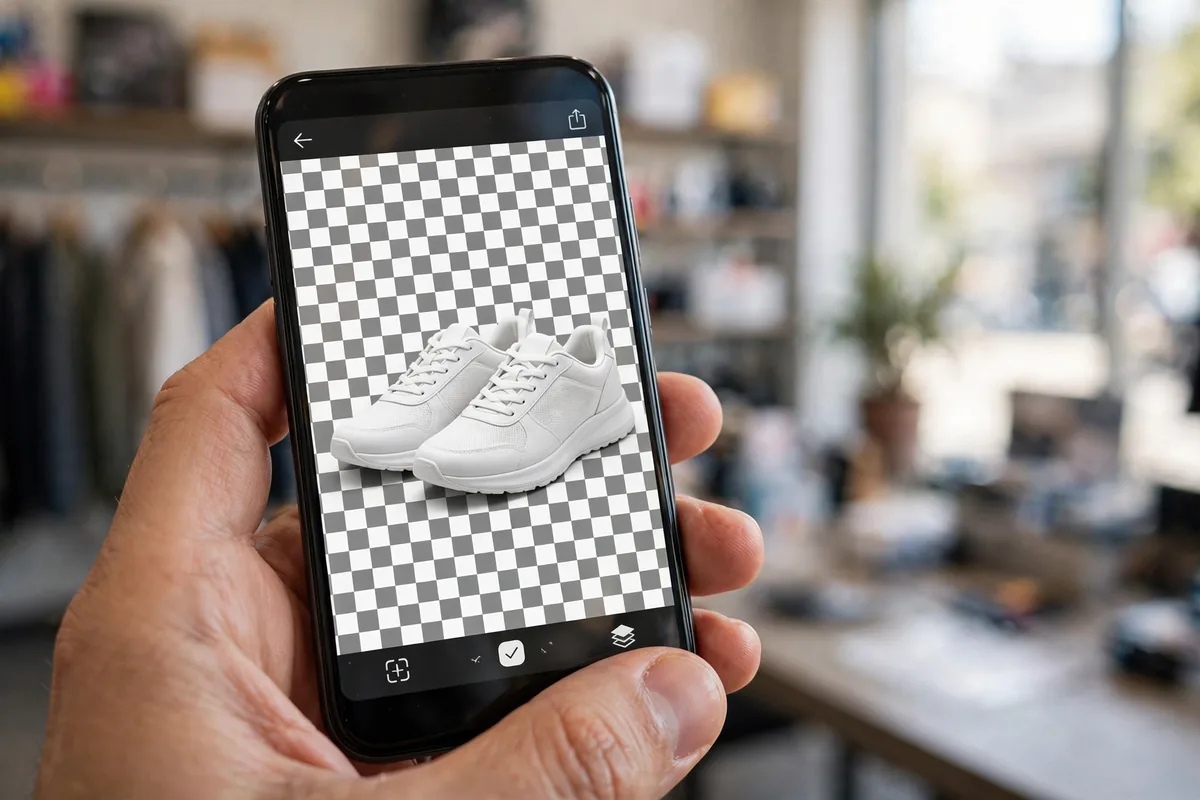
Most ai background remover tools follow the same freemium playbook: a genuinely useful free tier that handles casual needs, with resolution caps, watermarks, or monthly quotas nudging heavy users toward paid plans. Understanding where that line sits saves you from paying too early — or struggling with free limits too long.
Stay on free when your volume is low (under ~40 images a month), your outputs are web-resolution, and your subjects are straightforward — product shots on clean backgrounds, headshots, simple graphics. Fotor, Pixlr, and Adobe Express cover this territory completely, and there is no reason to pay for what free already does well.
Upgrade when one of three things happens. First, resolution: if you need print-quality or large-format cutouts, free tiers cap out fast and paid full-resolution downloads become non-negotiable. Second, volume: processing hundreds of product photos monthly makes batch-capable paid plans dramatically cheaper per image than your time. Third, edge difficulty: if your catalog includes fur, lace, jewelry chains, or glassware, the accuracy jump from free to premium ai background remover tools pays for itself in eliminated manual cleanup.
One cost trap to avoid: paying for overlapping tools. If you already subscribe to Canva Pro or Adobe’s ecosystem, their built-in removers cover most needs — audit what you own before adding another subscription. And if background removal is just one step in a bigger brand-asset workflow, our AI logo design tools comparison covers the design side with the same testing rigor.
FAQ
Are free AI background remover tools good enough?
For web use, social media, and drafts — usually yes. Tools like Fotor, Pixlr, and Adobe Express produce clean results on straightforward images without costing anything. The paid advantage shows up in edge cases (complex hair, transparency), full-resolution downloads, and batch processing. Try free first; pay when a specific limitation actually blocks your work.
Why does the AI struggle with hair and fur?
Fine strands are partially transparent and blend with the background at the pixel level — the algorithm must decide, strand by strand, what is subject and what is not. High-contrast, well-lit source photos help enormously. When a tool struggles, its manual refine brush (offered by Adobe Express, Remove.bg’s editor, and others) usually fixes the remaining 5% in under a minute.
Can I remove backgrounds from videos too?
Yes, but that is a different tool category — video background removal (often called green-screen-free matting) is handled by tools like CapCut, Runway, and Unscreen. The still-image ai background remover tools in this guide do not process video. Expect higher compute costs and longer processing times for video.
Do these tools keep my uploaded photos private?
Policies vary. Most reputable tools state that uploaded images are processed and then deleted within hours or days, and do not use your photos for training without consent. For sensitive or client-confidential imagery, check the privacy policy before uploading — or use a desktop tool that processes locally. When in doubt, assume uploads to free tiers may be retained for service improvement.
Which background remover is best for Amazon product photos?
Photoroom, specifically. Its batch processing, Amazon-sized templates, and automatic shadow generation are purpose-built for marketplace listings, and its cutout quality on product shots is excellent. Remove.bg is the accuracy alternative if you only need occasional cutouts and prefer its API.
Conclusion
The right pick among ai background remover tools depends on your bottleneck: Remove.bg for maximum accuracy, Adobe Express for free Creative Cloud-adjacent workflows, Canva for design teams, Photoroom for e-commerce volume, Fotor or Pixlr for free casual use, and Slazzer when you need an API. All seven turn a once-tedious chore into seconds of work. Pick the one matching your workflow, learn its refine tools for the tricky 5%, and never trace another background by hand.




Join the discussion
Have a question or a perspective to share?