

If you want an AI image editor that will not overwhelm you, start with Canva or Google Photos. Canva is the best all-rounder for beginners who want AI tools inside a simple drag-and-drop editor, while Google Photos is the best option if you only edit photos on your phone and never want to learn an interface at all. If you want a fuller editor that still runs in a browser, Pixlr is the strongest free pick. The rest of this guide walks through seven beginner-friendly options, what each one actually does, what it costs, and which type of beginner each suits best.
This list is built for people who feel lost opening Photoshop. Every tool below was chosen for a short learning curve: you can get a usable result in your first session, without watching tutorials first. Pricing and free-tier limits below were checked against vendor pricing pages and recent third-party trackers in September and October 2026 — vendors change plans often, so confirm on the official pricing page before you pay for anything.

Quick Picks: The Best AI Image Editors for Beginners
- Canva (Magic Studio) — Best overall for beginners. AI tools inside the easiest editor on this list.
- Google Photos (Magic Editor) — Best for phone-only editors. No interface to learn.
- Pixlr — Best free browser editor with generative fill.
- Adobe Express (Firefly) — Best free generative AI daily allowance plus templates.
- Fotor — Best one-click AI enhancement for bloggers and creators.
- Picsart — Best mobile-first creative editing for social content.
- Remove.bg — Best single-job tool: background removal in seconds.
If you are choosing between free and paid plans across any of these, read our free vs paid breakdown first — the free tiers are more capable than most people expect. And if you want a step-by-step walkthrough of your first AI edit, see our beginner’s guide to editing photos with AI.
How We Chose These (Beginner-First Criteria)
Most “best AI photo editor” lists rank tools by feature count, which is exactly the wrong metric for a beginner. A tool with forty AI features you will never open is worse than a tool with five you use every week. We scored candidates on four things:
- Time to first good result. Can you fix a photo in your first five minutes, with no tutorial?
- Interface simplicity. Are the AI features presented as plain buttons and sliders, or buried in panels and jargon?
- Guided help. Does the tool suggest what to do next, or leave you staring at a blank canvas?
- Honest free tier. Can a beginner do real work without paying, or is the free plan just a demo?
We did not run lab benchmarks or count pixels. Accuracy claims for AI edits come from vendor documentation and independent reviews, not from our own tests — and we say so wherever it matters.
1. Canva (Magic Studio) — Best Overall for Beginners
Canva is the default answer for beginners because it removes the hardest part of photo editing: deciding what to do. Its Magic Studio AI features — Magic Edit, Magic Eraser, background remover, and Magic Design — are presented as plain-language buttons inside an editor most people already understand from making presentations or social posts.
Key AI features: Magic Edit (describe a change in words and Canva applies it), Magic Eraser (brush over an object to remove it), AI background remover, Magic Design (generates layouts from a prompt), and Dream Lab image generation for creating new visuals.
Beginner experience: The learning curve is the shallowest on this list. You upload a photo, click the AI tool you want, and describe what you want in plain English. Templates do the design thinking for you, which matters more than most beginners expect — a decent template with your photo beats a blank canvas every time.
Pricing (checked October 2026): Canva’s free plan includes limited AI uses (trackers report around 200 standard and 20 premium AI uses). Canva Pro costs about $144 per year and unlocks the full Magic Studio allowance. For most beginners, the free plan is enough to learn on; upgrade when you hit the AI-use cap regularly.
Best for: Small-business owners, marketers, and anyone making social posts, thumbnails, or flyers who wants AI help without learning photo-editing concepts.
Limitation to know: Canva is a design tool with photo editing attached, not a photo editor. If you need precise control — selective color grading, layer masks, RAW processing — you will outgrow it.
2. Google Photos (Magic Editor) — Best for Phone-Only Editors
If your entire photo life lives on your phone, Google Photos with Magic Editor is the least overwhelming AI editor that exists, because there is almost no editor at all. You open a photo, tap Edit, and the AI suggests improvements — sky fixes, object removal, repositioning subjects — before you ask for anything.
Key AI features: Magic Editor (generative repositioning, object removal, sky and lighting edits), Magic Eraser, Photo Unblur, and Best Take (combines group shots so everyone looks their best). Most of these run on-device or in Google’s cloud with one tap.
Beginner experience: There is no learning curve because there is no interface to learn. The AI proposes edits; you accept or reject them. This is the tool to recommend to parents, grandparents, and anyone who says “I don’t do photo editing.”
Pricing (checked October 2026): Free with a Google account. Non-Pixel phones get a limited number of Magic Editor saves per month (10 saves per month on Android and iOS, per Google’s announcement), while Pixel owners get more generous allowances. No subscription is required for basic use.
Best for: Casual photographers who want better phone photos with zero effort and zero new apps.
Limitation to know: You are editing inside your photo library, not a creative workspace. There are no layers, no text tools worth using, and no way to start a design from scratch.
3. Pixlr — Best Free Browser Editor With Generative Fill
Pixlr is the closest thing to a real photo editor that still welcomes beginners. It runs entirely in the browser — no install, no account required for basic use — and its AI tools (generative fill, background removal, object removal) sit alongside familiar sliders for brightness, contrast, and color.
Key AI features: Generative fill and expand (describe what to add or how to extend the image), AI background remover, object removal, and AI image generation for creating visuals from text.
Beginner experience: Slightly steeper than Canva because it looks like a traditional editor, but the layout is far simpler than Photoshop’s. The free version is ad-supported, which is the main annoyance — the editing itself is straightforward, and tooltips explain most tools.
Pricing (checked October 2026): Free plan available (ad-supported, with limits on AI credits). Paid plans start around $2.49 per month for Plus and about $7.99 per month for Premium tiers, which remove ads and raise AI credit limits. That makes Pixlr one of the cheapest paid upgrades on this list.
Best for: Beginners who want to learn real editing concepts (layers, selections, adjustments) with AI doing the heavy lifting, without installing software.
Limitation to know: Ads in the free version interrupt the workflow, and heavy AI users will burn through free credits fast. It is also browser-only, so very large files can feel sluggish.
4. Adobe Express (Firefly) — Best Free Generative AI Allowance
Adobe Express is Adobe’s answer to Canva: a template-driven design tool with Firefly generative AI built in. For beginners, its standout trait is generosity — the free plan includes daily Firefly generations, which means you can experiment with generative fill, text-to-image, and text effects every day without paying.
Key AI features: Firefly generative fill (add, remove, or replace parts of an image with a text description), text-to-image generation, generative text effects, background removal, and 100,000+ templates.
Beginner experience: Very close to Canva in simplicity. The interface guides you toward templates first, and the AI features are labeled in plain language. One genuine advantage for cautious beginners: Firefly is trained on licensed Adobe Stock content, so commercially safe output is a stated design goal — useful if your images will appear in a business context.
Pricing (checked October 2026): Free plan with daily Firefly generations. Adobe Express Premium costs about $9.99 per month and raises generation limits and unlocks premium templates and assets. The free plan is unusually usable compared with most freemium editors.
Best for: Beginners who want to experiment with generative AI edits daily for free, and anyone who prefers Adobe’s ecosystem.
Limitation to know: Like Canva, it is design-first. Deep photo retouching (skin work, frequency separation, advanced masking) is not its strength.
5. Fotor — Best One-Click AI Enhancement
Fotor’s pitch to beginners is simple: upload a photo, click one button, get a better photo. Its AI photo enhancer, background remover, and portrait retouching tools are built for people who want results, not controls. It also bundles collage makers and design templates, positioning itself between an editor and Canva.
Key AI features: One-click AI enhancement, AI background remover, object removal, portrait retouching (skin smoothing, blemish removal), AI headshot generation, and batch editing for processing many photos at once.
Beginner experience: The one-click tools genuinely work for common problems — dull lighting, flat colors, distracting backgrounds. The interface is busier than Canva’s, with upsell prompts for the paid tier appearing regularly on the free plan, which some beginners find pushy.
Pricing (checked October 2026): Free basic plan (ad-supported, limited AI credits and standard-resolution exports). Fotor Pro starts around $3.99 per month, with higher Pro+ tiers adding more AI credits. Reasonable for what you get, but the free plan’s limits arrive quickly.
Best for: Bloggers, marketplace sellers, and social creators who process lots of photos and want fast, repeatable enhancements.
Limitation to know: The free plan’s ads and credit limits are more aggressive than Pixlr’s or Adobe Express’s. Fine-grained manual control is limited compared with Pixlr.
6. Picsart — Best Mobile-First Creative Editing
Picsart is built for the phone-first creator: stickers, effects, AI replace, background tools, and a huge community template library. Where Canva feels like a design studio, Picsart feels like a creative playground — less structured, more experimental, and very comfortable for social media content.
Key AI features: AI Replace (swap objects or backgrounds with a text prompt), AI image generator, background remover, AI avatar and style effects, and batch-style filters.
Beginner experience: Easy to start, easy to get lost in. The app surfaces so many effects and templates that decisive beginners do better than browsers. The core editing flow — open photo, apply AI tool, export — is simple; the surrounding content feed is the distraction.
Pricing (checked October 2026): Free app with core features. Paid plans (Plus/Pro/Ultra tiers, starting around $5 per month depending on tier and billing) unlock premium AI tools, remove watermarks on some exports, and raise limits. Check the current tier names in the app — Picsart has renamed plans more than once.
Best for: Social media creators, teens and young creators, and anyone who edits exclusively on a phone and wants playful AI effects.
Limitation to know: Output can look stylized rather than natural — great for social posts, less ideal for product photos or professional headshots. Desktop editing exists but feels secondary.
7. Remove.bg — Best Single-Job Tool (Background Removal)
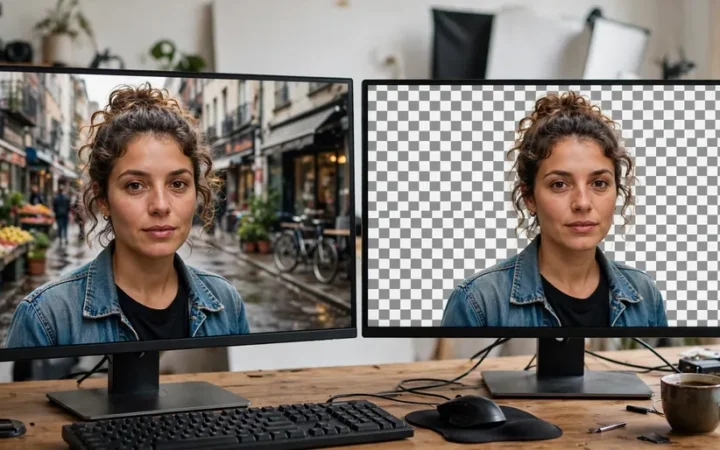
Remove.bg does exactly one thing — removes image backgrounds — and does it better than the background removers inside general editors. For beginners, single-purpose tools deserve a spot on this list because they eliminate every decision except “upload photo.”
Key AI features: Automatic background removal (upload and done in seconds), with simple options to add a new background color or image afterward. An API exists for bulk use.
Beginner experience: There is nothing to learn. Upload, download, finished. This is the tool to bookmark for marketplace listings, profile pictures, thumbnails, and presentations.
Pricing (checked October 2026): Free background removal on the website (with resolution limits on free downloads). Paid credit packs and subscriptions raise resolution and volume for heavy users. For occasional use, the free tier is all most beginners need.
Best for: Anyone who regularly needs clean cutouts — sellers, presenters, job seekers updating LinkedIn photos — without opening an editor at all.
Limitation to know: It is one trick. Hair, fur, and transparent objects can still produce rough edges, and you will need a real editor for anything beyond the cutout.
Side-by-Side Comparison
| Tool | Runs on | Free tier | Paid from | Learning curve | Best for |
|---|---|---|---|---|---|
| Canva | Browser, mobile, desktop | Yes, limited AI uses | ~$144/yr | Very low | All-round beginner design + photo edits |
| Google Photos | Android, iOS | Yes (10 Magic Editor saves/mo non-Pixel) | Free | None | Phone-only casual editing |
| Pixlr | Browser | Yes, ad-supported | ~$2.49/mo | Low-medium | Learning real editing free |
| Adobe Express | Browser, mobile | Yes, daily AI generations | ~$9.99/mo | Very low | Free daily generative experiments |
| Fotor | Browser, mobile, desktop | Yes, limited credits | ~$3.99/mo | Low | One-click batch enhancement |
| Picsart | Mobile-first | Yes | ~$5/mo | Low | Playful social content |
| Remove.bg | Browser | Yes | Credit packs | None | Instant background removal |
Pricing checked September–October 2026 via vendor pricing pages and independent trackers; plans change frequently.
How to Choose: A 3-Question Decision Framework
Instead of comparing feature lists, answer three questions:
1. Where do your photos live? Phone only → Google Photos or Picsart. Computer → Canva, Pixlr, or Adobe Express. Mixed → Canva.
2. What is the actual job? One recurring task (background removal, quick enhancement) → a specialist like Remove.bg or Fotor. Varied creative work → Canva or Adobe Express. Learning real editing → Pixlr.
3. What is your budget for experimenting? $0 → start with Google Photos, Pixlr, and Adobe Express free tiers. A few dollars a month → Pixlr Plus or Fotor Pro. ~$12/month → Canva Pro, which covers design far beyond photo editing.
The common beginner mistake is picking the most powerful tool “to grow into.” Growth in photo editing comes from finishing projects, not from owning features. Pick the simplest tool that handles this month’s work; upgrade when a specific limitation blocks you twice.
What AI Image Editors Still Get Wrong
Honest expectations prevent disappointment. Generative fills can hallucinate details — a removed tourist may leave behind a warped railing. Background removers struggle most with hair, fur, and transparent objects. AI upscalers can add artifacts to heavily compressed images. And no vendor publishes independent accuracy benchmarks for free tiers, so test on your own photos before relying on any tool for client work. When an edit matters — a product listing, a job application photo — zoom in at 100% and check edges, hands, and text in the image before exporting.
Frequently Asked Questions
What is the easiest AI image editor for a complete beginner?
Google Photos with Magic Editor is the easiest — there is no interface to learn, the AI suggests edits automatically. For beginners who want slightly more control without complexity, Canva is the next step up.
Is there a good free AI image editor with no watermark?
Yes. Pixlr, Adobe Express, Canva, and Google Photos all offer usable free tiers without forcing watermarks on basic exports. Watermarks typically appear only on premium templates or specific AI-generated assets, not on your own edited photos.
Can AI image editors replace Photoshop for beginners?
For common beginner tasks — removing objects, changing backgrounds, enhancing lighting, creating social graphics — yes, the tools above cover it. Photoshop remains relevant for professional retouching, print work, and precise compositing, which most beginners never need.
Are free AI image editors safe to use with personal photos?
Generally yes for well-known vendors, but read the privacy policy before uploading sensitive images. Free browser tools may use uploads to improve their models; check for an opt-out. Avoid uploading IDs, financial documents, or children’s photos to any editor you have not vetted.
Which AI image editor is best for product photos?
For quick background removal on product shots, Remove.bg is fastest. For consistent catalog-style enhancement, Fotor’s batch tools help. Canva works well when product photos need to become social ads or listing graphics with text.
Do I need to pay to get good results?
No — not at first. The free tiers of Pixlr, Adobe Express, Canva, and Google Photos handle the most common beginner edits. Pay when you hit a concrete limit (AI credit caps, export resolution, batch volume), not in advance. Our free vs paid guide breaks down exactly where each free tier ends.
Sources and Verification Notes
Pricing and plan details were cross-checked in September–October 2026 against vendor pricing pages and independent trackers (including feri24.com, aitoolranked.com, and krea.ai’s Adobe pricing breakdown). Tool capabilities are described from vendor feature documentation. No hands-on benchmark testing was performed for this guide; ease-of-use assessments reflect interface design and documented workflows. If you spot an outdated price, check the vendor’s live pricing page — AI tool plans change frequently.

Join the discussion
Have a question or a perspective to share?