
PDFs are where knowledge goes to hibernate. Research papers, annual reports, user manuals, e-books, legal filings, product whitepapers — the format is universal, and so is the problem: a PDF's contents are locked behind dozens or hundreds of pages that nobody has time to read. Knowing how to use AI to summarize a PDF turns any PDF from an obligation into an asset you can actually use.
This guide teaches you how to use AI to summarize a PDF: the practical, PDF-specific companion to general document summarization. PDFs have their own quirks — scanned pages, weird formatting, tables that break, enormous file sizes — and this guide addresses each one. You'll learn which free tools handle PDFs best in 2026, how to deal with scanned and extra-long PDFs, how to extract specific information (not just generic summaries), and how to verify results so you can trust what you read.
Why PDFs Deserve Their Own Guide
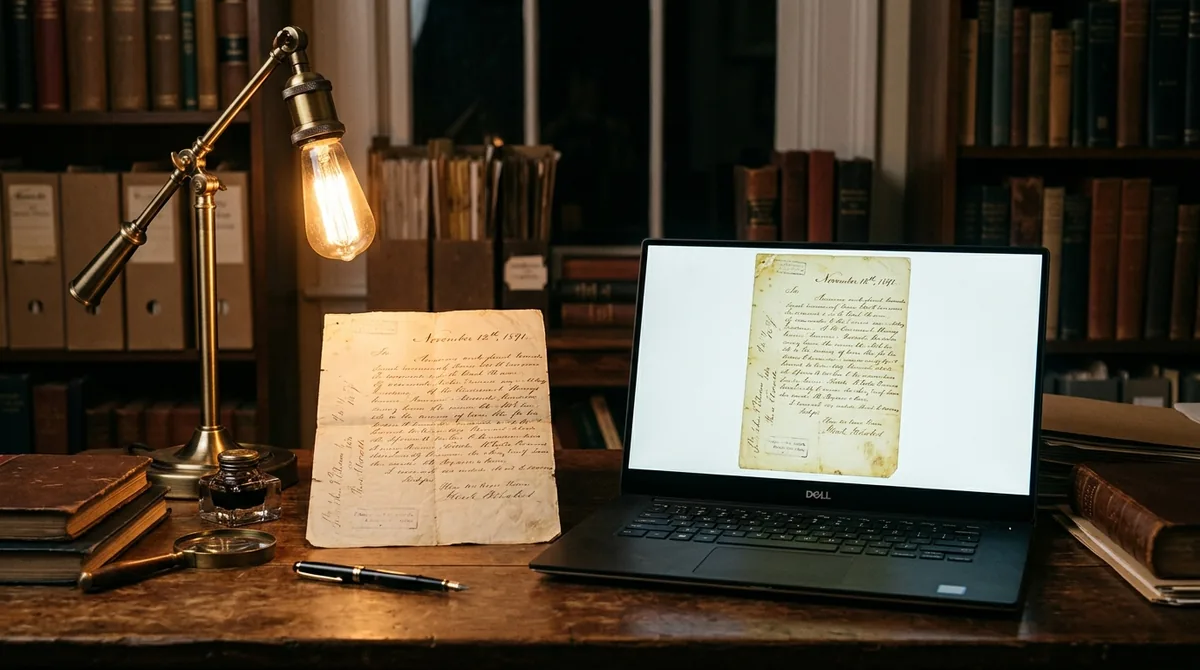
A Word document is straightforward: clean text, logical structure. PDFs are wilder. A PDF might be:
- Native digital text — easy, summarizes beautifully
- A scanned image of pages — needs OCR before anything else works
- A hybrid — text pages mixed with scanned exhibits
- Enormous — a 500-page manual or a 2,000-page legal record
- Weirdly formatted — two-column academic papers, tables spanning pages, footnotes everywhere
Each type needs a slightly different approach. Get the approach right and summarization is nearly effortless; get it wrong and you'll get confident nonsense about a document the AI couldn't actually read.
How to Use AI to Summarize a PDF: The Best Free Tools in 2026
ChatGPT (Free Tier)
ChatGPT's free plan accepts PDF uploads directly. It's a strong general choice: good structured summaries, follow-up questions, and the ability to handle moderately long documents. For the average 10–80 page PDF — the reports, papers, and guides most people encounter — it's all you need.
Claude (Free Tier)
Claude's standout feature for PDFs is its large context window, which comfortably handles very long documents — hundred-plus-page reports that choke other free tools. It also tends to preserve nuance: caveats, conditions, and "on the other hand" passages that simpler summarizers drop. If your PDFs are long or subtle, start here.
Google Gemini
Gemini's free tier handles PDFs well and integrates with Google Drive — if the PDF is already in your Drive, you can summarize without downloading and re-uploading. Handy for people whose documents live in Google's ecosystem.
NotebookLM (Free)
Google's NotebookLM deserves special mention for PDF work. You upload multiple PDFs (research papers, reports, manuals) into a "notebook," and it becomes a question-answering research assistant grounded in your documents — with citations linking back to specific passages. For anyone doing research across several PDFs, it's the best free tool in this category. The cited answers also make verification dramatically easier.
Microsoft Copilot in Edge / Windows
Edge's built-in Copilot can summarize the PDF you're currently viewing in the browser — no upload step at all. For quick "what is this PDF about" triage of a downloaded file, it's the fastest path.
Step-by-Step: Summarizing a Standard PDF

Here's the reliable baseline workflow for a typical digital-text PDF:
- Open the PDF and skim the first two pages. Know what you're dealing with — a research paper, a report, a manual — so you can prompt appropriately. Note the page count.
- Upload to your AI assistant (ChatGPT, Claude, or Gemini free tier).
- Confirm it loaded fully. Ask "How many pages is this document?" If the answer doesn't match, something went wrong — try re-uploading or a different tool.
- Request a structured summary with a purpose-built prompt (templates below).
- Drill down with follow-ups on the sections that matter to you.
- Verify critical facts against the source PDF before acting on them.
Total time for a 40-page report once you know how to use AI to summarize a PDF: roughly 10–15 minutes, versus 2+ hours of reading.
Dealing with Scanned PDFs
How to Tell If Your PDF Is Scanned
Try selecting text in the PDF. If you can highlight individual words, it's digital text. If selection grabs whole page regions as images (or nothing selects at all), it's scanned — and the AI needs OCR help.
The OCR-First Workflow
- Run OCR before uploading. Options: Google Drive (upload the PDF, open with Google Docs — Drive OCRs it automatically), Adobe's free online OCR, or built-in OS tools. Save the OCR'd version.
- Spot-check the OCR. Open the converted text and scan a few pages for garbled characters, especially in tables and headers. If whole sections are gibberish, the scan quality is too poor — re-scan at higher resolution if possible.
- Upload the OCR'd version to your AI assistant and summarize normally.
- Verify more aggressively. OCR errors propagate into summaries. Cross-check numbers and names against the original scan.
Phone Photos of Documents
If your "PDF" is really phone photos compiled into a PDF, modern AI assistants with vision capabilities can often read them directly — upload and ask. Results vary with photo quality: flat, well-lit, straight-on photos work; angled, shadowy, blurry ones don't. For important documents, re-photograph carefully rather than fighting bad images.
Handling Very Long PDFs

Know Your Tool's Limits
Free tiers have context limits measured in tokens (roughly, words). A 20-page PDF is fine everywhere; a 300-page technical manual may exceed some free tiers. When in doubt, Claude's free tier handles the longest documents among major free assistants — but limits change, so check current documentation.
The Chunk-and-Synthesize Method
For PDFs too long for one upload:
- Split by natural sections — chapters, parts, or 30–50 page chunks. Many free PDF tools split files; even printing page ranges to new PDFs works.
- Summarize each chunk with a consistent prompt ("Summarize this section in 10 bullet points, preserving all key data and conclusions").
- Feed the chunk summaries back in and ask for a unified summary: "Here are summaries of each chapter of a report. Synthesize them into an overall executive summary, noting how the chapters connect."
- Keep the chunk summaries. They become your detailed reference; the synthesis is your overview.
This method often beats single-pass summarization anyway, because each section gets full analytical attention instead of being compressed into oblivion.
The Targeted Alternative
Sometimes you don't need the whole PDF summarized — you need answers. Upload as much as fits and ask targeted questions: "What does this manual say about warranty coverage?" "What are the study's conclusions about X?" NotebookLM excels here, answering from across all uploaded PDFs with citations.
Getting More Than a Generic Summary
The default "summarize this PDF" prompt produces bland output. These targeted approaches extract real value:
Extract Structured Data
"Extract every table in this PDF into clean markdown tables, preserving all numbers exactly. List the table number and page for each."
"List all dates mentioned in this document chronologically, with a one-line description of what happens on each date."
Compare and Evaluate
"What are the three main arguments in this paper, and what evidence does the author provide for each? Rate the strength of evidence for each as strong, moderate, or weak, and explain why."
"Summarize this report's recommendations, then list any risks or downsides the report itself acknowledges."
Adapt for Your Purpose
"I'm a small business owner considering the software reviewed in this whitepaper. Summarize it as a buyer's guide: what it does, what it costs, pros, cons, and who it's best for."
"Turn this 50-page manual's troubleshooting section into a one-page quick-reference checklist."
Learn from It
"Explain this paper's key findings as if I'm a smart undergraduate who hasn't read the field's jargon. Define technical terms as they come up."
"Create 10 study questions based on this PDF, with answers, focusing on the concepts most likely to appear on an exam."
Verifying AI PDF Summaries
PDF summarization has specific failure modes to guard against:
- Truncated uploads. The most common issue: the AI summarized the first N pages and never saw the rest. Always confirm page count first.
- Table corruption. Data in complex tables sometimes gets misread or misattributed. Verify any number you'll rely on against the original table.
- Footnote blindness. Important caveats often live in footnotes that summaries skip. For academic and legal PDFs, explicitly ask: "Include important qualifications from footnotes."
- Chart misreading. AI descriptions of charts are approximate. For data that matters, look at the chart yourself.
- Hallucinated citations. If a summary cites "page 47," verify the content is actually on page 47. Ask for direct quotes to confirm.
The golden rule when you learn how to use AI to summarize a PDF: the summary tells you where to look; the PDF tells you what's true. For anything consequential — money, legal obligations, health, citations in your own work — check the source.
Privacy and Sensitive PDFs
PDFs often contain the sensitive stuff: tax returns, medical records, contracts, financial statements. Before uploading:
- Check the tool's data-use policy. Understand whether uploads are used for model training and whether you can opt out. Business/enterprise tiers typically offer stronger commitments than free consumer tiers.
- Redact what's not needed. If you only need the financial summary of a 30-page tax return, redact names, SSNs, and account numbers first. Many free PDF editors can redact.
- Consider local options. For highly sensitive documents, look into AI tools that run on your own device — nothing leaves your machine. Open-source models can summarize locally with no cloud upload at all.
- Remember retention. Some services retain uploads for a period. Check retention policies for anything confidential.
Organizing Summaries for Future Use
Don't let summaries evaporate in chat history:
- Save summaries alongside the PDFs. A simple convention — `report.pdf` plus `report-summary.md` in the same folder — builds a searchable personal knowledge base over time.
- Use NotebookLM or similar for research collections. Upload all PDFs for a project into one notebook; months later you can still ask questions across the whole collection.
- Build a summary template for recurring PDF types (weekly industry reports, monthly financials) so outputs are consistent and comparable over time.
FAQ
Can I summarize a PDF for free?
Yes. The free tiers of ChatGPT, Claude, Google Gemini, and NotebookLM all accept PDF uploads and summarize them at no cost. For typical PDFs (up to several dozen pages), free tiers are fully sufficient. Very long or highly sensitive documents may warrant paid or local tools.
Why did the AI summarize only part of my PDF?
The most likely cause is a context limit — the PDF exceeded what the free tier can process in one upload, so it worked with a truncated portion. Confirm by asking how many pages it processed. Fix it with the chunk-and-synthesize method: split the PDF into sections, summarize each, then combine.
How do I summarize a scanned PDF that has no selectable text?
OCR it first. Upload the scanned PDF to Google Drive and open it with Google Docs (Drive performs OCR automatically), or use a free online OCR tool. Then upload the resulting text to your AI assistant. Verify the summary carefully, since OCR errors — especially in tables — carry through into the summary.
Can AI summarize a PDF in another language or translate it?
Yes. Upload the PDF and ask for a summary in your preferred language — e.g., "Summarize this French report in English." Major assistants handle dozens of languages. For critical documents (legal, financial), have key terms verified by a qualified human translator.
Is it safe to upload confidential PDFs to free AI tools?
Exercise caution. Check each provider's data-use and retention policies before uploading anything containing personal data, financial details, or trade secrets. Redact sensitive fields when possible, prefer business tiers with stronger data commitments for work documents, and consider local/on-device AI tools for the most sensitive material.
What's the best AI tool for summarizing research papers?
For single papers, Claude's free tier handles long academic PDFs well and preserves nuance. For working across multiple papers, NotebookLM is the standout — upload all your papers to one notebook and ask comparative questions with cited answers, which makes literature reviews dramatically faster.
Conclusion
Learning how to use AI to summarize a PDF in 2026 is a solved problem for standard documents and a manageable one for tricky cases: pick a capable free tool, confirm the full document loaded, OCR your scans, chunk what's too long, prompt with purpose instead of accepting generic output, and verify anything consequential against the source. The PDF mountain on your hard drive isn't going anywhere — but with this workflow, it stops being a burden and starts being a resource you can actually query, compare, and learn from in minutes instead of hours.




Join the discussion
Have a question or a perspective to share?