
The average professional loses hours a week just triaging email. The new generation of AI email assistants promises to hand that time back — if you can live with what they need to see to do it.
Best AI Email Assistants (2026)
AI email assistants promise something every professional wants: an inbox that manages itself. The average office worker receives well over 100 emails a day, and studies of workplace communication consistently find that email triage consumes hours of the workweek. The new generation of AI email tools attacks that burden from three directions — triaging what matters, drafting replies in your voice, and chasing the follow-ups you would otherwise forget. But they differ sharply in how deeply they integrate with Gmail and Outlook, what they cost, and — critically — what access to your inbox actually means for your privacy.
This roundup covers the leading AI email assistants of 2026: what each one does best, how it connects to your existing email, published pricing structures, and the privacy questions you should ask before granting any tool access to your correspondence. As with all comparisons in this series, assessments are based on published specifications, official documentation, and publicly listed pricing — not on first-hand testing claims. Pricing changes frequently in this category, so confirm current plans on each vendor’s site before deciding.
What AI Email Assistants Actually Do
The category breaks into three core capabilities, and most tools specialize in one or two:
- Triage and prioritization. AI sorts incoming mail by importance, bundles newsletters and notifications, surfaces messages that need a reply, and learns from what you open, archive, or ignore. The goal is an inbox where the top ten messages are the ten that matter.
- Drafting and reply assistance. Given a thread, the assistant drafts a reply in your tone — or generates one from a short instruction like “accept, propose Thursday.” The best systems learn your writing style from sent mail; weaker ones produce generic corporate prose you will rewrite anyway.
- Follow-up and workflow automation. Nudges for threads awaiting replies, automatic meeting scheduling from email content, snippet libraries, send-later, and CRM logging. This is where email assistants blur into productivity platforms.
A fourth emerging capability is agentic inbox handling: assistants that can take multi-step actions — find the invoice thread, summarize the dispute, draft the response, and queue it for approval. In 2026 this remains supervised automation rather than full autonomy, and the tools below vary in how far they go.
How to Choose: Key Buying Criteria

Before comparing products, lock in your requirements:
- Your email provider. Gmail and Outlook dominate, but integration depth varies enormously. Some assistants are native Gmail/Outlook clients; others work through browser extensions or IMAP bridges with limited features. iCloud and custom domains narrow the field further.
- Client vs. layer. A full email client (Shortwave, Superhuman, Spark, Canary) replaces your mail app entirely. A layer (SaneBox, Mailbutler, Flowrite) works inside Gmail or Outlook. Clients offer deeper AI integration; layers are easier to adopt and abandon.
- Privacy posture. An email assistant reads your email — there is no version of this product that does not. What matters is whether your data trains models, how long it is retained, and what compliance certifications exist. See the privacy section below.
- Team vs. individual. Shared inboxes, assignment, collision detection, and analytics matter for support and sales teams (Missive’s territory). Solo professionals should weight triage speed and drafting quality instead.
- Pricing model. Per-user subscriptions from roughly $7 to $30+ per month are typical; some tools charge per seat with annual commitments. Calculate against the hours of triage you expect to reclaim.
The Best AI Email Assistants of 2026
Superhuman — The Speed-Obsessed Power Tool
Superhuman is the premium email client built around one idea: the fastest email experience possible. Its AI features include instant reply drafting, auto-summarization of long threads, and natural-language commands (“email the team about the delay”). Published pricing has historically been $30 per user per month — the highest in this roundup — positioned explicitly as a productivity investment for executives, founders, and investors whose inboxes are genuinely overwhelming. Superhuman works with Gmail and Outlook accounts, offers white-glove onboarding, and its keyboard-driven workflow remains unmatched for processing hundreds of emails daily. The price is the objection; the counterargument is that for people drowning in email, the time reclaimed justifies it. It is overkill for light email users.
Shortwave — The AI-Native Gmail Client
Shortwave, built by former Firebase engineers, is arguably the most AI-native email client available: every message can be summarized, every thread is searchable by natural-language query across your history, and its assistant drafts replies, schedules, and organizes with deep Gmail integration. Published pricing has historically included a capable free tier with paid plans starting around $9–24 per month depending on AI usage allowances. Shortwave’s standout is its “AI search over everything” — ask “what did we decide about the Acme contract?” and get an answer synthesized from months of threads. For Gmail users who want AI woven through the entire client rather than bolted on, Shortwave is the strongest pick. Outlook users should look elsewhere — Gmail is its home.
Fyxer AI — The Executive Assistant for Your Inbox
Fyxer AI positions itself as a virtual executive assistant: it drafts replies in your writing style (learned from your sent mail), organizes your inbox into labeled categories, takes meeting notes, and — distinctively — drafts follow-up emails after your calls. Published pricing has historically started around $20 per user per month. Its drafting quality is frequently cited as a differentiator: because it trains on your actual sent emails, replies sound like you rather than like a chatbot. Fyxer works as a layer over Gmail and Outlook, so there is no client switch required. Best for professionals who want drafting and organization without changing apps; less suited to teams needing shared-inbox collaboration.
Spark — The Smart Client for Individuals and Small Teams
Spark (by Readdle) is a polished email client for macOS, iOS, Windows, and Android with AI features including message summarization, reply drafting, and priority inboxing. Its published premium tier has historically been priced modestly (around $8 per month), with a functional free version — making it the budget-friendly full client in this roundup. Spark’s “Gatekeeper” screening for new senders and its clean, fast interface appeal to individual users who want a better mail app with useful AI rather than an AI platform that happens to do email. Team features (shared drafts, delegation) exist but are lighter than Missive’s. A sensible default for Apple-ecosystem users.
Canary Mail — The Privacy-First AI Client
Canary Mail differentiates on privacy: end-to-end encryption support (PGP), biometric app lock, and AI features — including its “Copilot” for drafting and summarizing — that the company states are processed without training on user data. Published pricing has historically been around $20 per year for individuals, dramatically undercutting subscription rivals, with team plans available. For users whose threat model includes email surveillance or who handle sensitive correspondence, Canary’s combination of encryption and AI assistance is unique. The tradeoff is a smaller feature set and ecosystem than the bigger clients — AI capabilities are solid but not category-leading.
Missive — Best for Teams and Shared Inboxes
Missive is a team inbox platform where email, chat, and tasks live together: assign threads to teammates, comment internally on emails, detect reply collisions, and run shared addresses like support@ or sales@ collaboratively. Its AI layer adds summarization, drafting, and workflow rules across the shared workspace. Published pricing has historically started around $18 per user per month. For a solo user it is more than needed; for a team running support, sales, or operations through shared inboxes, Missive’s collaboration model plus AI is the category leader. If your problem is “our team shares an inbox” rather than “my inbox is full,” start here.
SaneBox — The Inbox Triage Layer
SaneBox takes the opposite approach from full clients: it works inside your existing Gmail, Outlook, or Apple Mail, using AI to sort incoming mail into folders (SaneLater for low-priority, SaneBlackHole for unwanted senders, SaneReminders for follow-ups) and surfacing what needs attention. Published pricing has historically started around $7 per month — among the cheapest options here. SaneBox does not draft emails; it is purely a triage and organization layer, which makes it ideal for people who like their current email app but hate the chaos inside it. Setup takes minutes, there is nothing to learn, and the “SaneReminders” follow-up nudges alone justify the cost for many users.
Flowrite — The Drafting Specialist
Flowrite is a browser extension and web app focused on one job: turning short instructions into complete, polished emails. Type “decline politely, suggest next quarter” and get a full reply in your tone. Published pricing has historically started around $15 per month. It works across Gmail, Outlook, and other webmail through the extension, learning your writing style over time. Flowrite is the right choice when drafting — not triage — is your bottleneck: customer-facing roles, non-native English speakers writing professionally, and anyone who stares at a blank reply box. It pairs well with a triage tool like SaneBox for a complete, low-cost stack.
Lavender — The Sales Email Coach
Lavender is an AI email assistant built specifically for outbound sales: it scores your draft emails, suggests improvements to subject lines and personalization, verifies recipient data, and integrates with Gmail, Outlook, and sales engagement platforms. Published pricing has historically started around $29 per user per month. Unlike general assistants, Lavender optimizes for reply rates — its coaching draws on analysis of millions of sales emails. For SDRs and founders doing outbound, it is a specialized instrument; for general inbox management, it is the wrong tool entirely. Evaluate it on reply-rate improvement, not on triage features it was never designed to have.
Gmail vs. Outlook: The Integration Reality Check
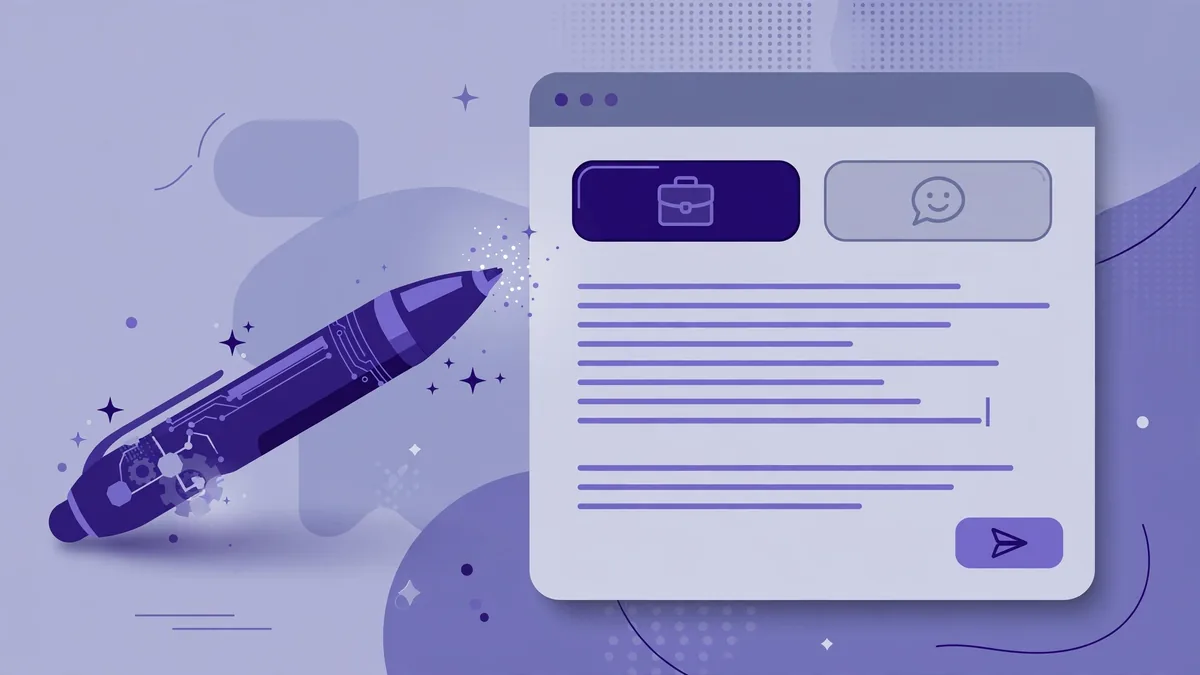
Integration depth is the most underappreciated buying factor, so here is the honest breakdown:
- Gmail-native tools (Shortwave, and layers like SaneBox, Flowrite, Fyxer) get the deepest access via Google’s APIs: labels, filters, thread metadata, and sent-mail history for style training. Gmail’s API is the most permissive major provider, which is why AI email innovation clusters here.
- Outlook support is broad but shallower. Superhuman, Spark, Fyxer, and Lavender all support Outlook accounts, but features that depend on deep API access (style training on sent mail, advanced search) sometimes work better on Gmail. Microsoft’s own Copilot for Outlook is the native alternative — deeply integrated but tied to Microsoft 365 licensing.
- Microsoft 365 Copilot deserves mention as the default for enterprise Outlook users: it summarizes threads, drafts replies, and prepares meeting briefs from your inbox and calendar, all inside the Microsoft compliance boundary. Published pricing has historically been around $30 per user per month as an add-on. If your organization already standardizes on Microsoft 365, evaluate Copilot before adding a third-party tool — the compliance story is simpler.
- Gmail’s built-in Gemini features similarly cover the basics for Google Workspace users: “Help me write,” thread summaries, and smart replies, included in Workspace plans with Gemini. They are less ambitious than dedicated assistants but free at the point of use.
The rule of thumb: dedicated tools beat built-in features on capability; built-in features win on privacy simplicity and zero added cost.
Pricing Compared
| Tool | Published starting price | Model | Best for |
|—|—|—|—|
| Superhuman | ~$30/user/mo | Full client | Executives, heavy email users |
| Shortwave | Free tier; ~$9–24/mo paid | Full client (Gmail) | AI-native Gmail workflow |
| Fyxer AI | ~$20/user/mo | Layer (Gmail/Outlook) | Drafting in your voice |
| Spark | Free tier; ~$8/mo premium | Full client | Budget full client |
| Canary Mail | ~$20/year | Full client | Privacy-focused users |
| Missive | ~$18/user/mo | Team inbox platform | Shared inboxes, support/sales teams |
| SaneBox | ~$7/mo | Triage layer | Keep your app, fix the chaos |
| Flowrite | ~$15/mo | Drafting extension | Drafting bottleneck |
| Lavender | ~$29/user/mo | Sales coaching layer | Outbound sales teams |
| Microsoft 365 Copilot | ~$30/user/mo add-on | Native (Outlook) | Enterprise Microsoft shops |
All figures reflect publicly listed pricing and change frequently — confirm before buying. Note the pricing logic of the category: triage layers are cheap, full AI clients cluster around $20–30, and specialized sales tools price against the revenue they influence.
Privacy and Security: The Questions to Ask
Granting an AI tool access to your inbox is among the most sensitive permissions in consumer software. Before you do, get answers to these questions from the vendor’s published privacy policy and security documentation — not from marketing pages:
- Is my email used to train AI models? This is the single most important question. Reputable vendors state explicitly that customer email content is not used for model training; some offer contractual guarantees on business tiers. If the policy is vague, assume the worst.
- Where is my data processed and stored? Look for SOC 2 Type II certification, published data-residency options (US/EU), and encryption in transit and at rest. Enterprise tiers should offer SSO/SAML and audit logs.
- What scopes does the integration request? A tool that needs full read/write mailbox access should justify it. Prefer tools using granular OAuth scopes over those asking for blanket permissions.
- How long is data retained, and can I delete it? Check retention windows for email content, embeddings, and logs — and whether deletion is self-serve.
- What happens on cancellation? Your data should be deletable on request, and the vendor should document the offboarding process.
- Regulated industries: Healthcare, legal, and financial services need HIPAA, attorney-client privilege, or FINRA-compatible handling. Consumer-grade assurances are not enough — get a signed BAA or equivalent where required.
Practical hygiene regardless of vendor: use app-specific passwords or OAuth (never share your actual password), review connected apps quarterly in your Google/Microsoft security settings, and keep truly sensitive correspondence (legal, medical, financial) in accounts no assistant can access.
Getting the Most Out of an AI Email Assistant
Buying the tool is the easy part; the value comes from workflow changes:
- Train the style model deliberately. Tools that learn your voice (Fyxer, Flowrite, Shortwave) improve with good training data. Send a week of careful, well-written emails after onboarding — the model learns from what you actually send.
- Build a snippet library. Canned responses for recurring situations (meeting requests, pricing questions, introductions) combined with AI personalization beat pure generation for consistency.
- Set triage rules once, review monthly. Teach the system which senders and subjects matter; revisit after a month, because your priorities drift and the model’s assumptions should drift with them.
- Keep a human in the loop for external mail. Auto-drafted replies are fine for internal scheduling; customer-facing, legal, or sensitive replies deserve a read-through. Every experienced user of these tools has a story about the draft that almost went out.
- Measure reclaimed time honestly. Track emails processed per day and average handling time for two weeks before and after adoption. The tools that earn their subscription show it in the numbers.
Frequently Asked Questions About Best AI Email Assistants
Are AI email assistants safe to use?
They are as safe as their data practices. The technology itself is mature; the risk is entirely about what happens to your email content. Choose vendors with explicit no-training-on-your-data policies, SOC 2 certification, and clear deletion processes — and keep sensitive accounts separate. Never grant inbox access to a tool whose privacy policy you have not read.
Which AI email assistant is best for Gmail?
Shortwave is the most AI-native Gmail client, with deep search, summarization, and drafting woven through the whole app. If you prefer to keep the Gmail interface, Fyxer AI or SaneBox add AI drafting and triage as layers. Google’s own built-in Gemini features cover the basics at no extra cost for Workspace users.
Which AI email assistant is best for Outlook?
Superhuman and Spark both support Outlook with strong clients; Fyxer AI and Lavender work as layers. For enterprise Microsoft 365 environments, Microsoft’s own Copilot for Outlook is usually the simplest compliant choice, since data stays inside the Microsoft boundary.
Can AI really write emails in my voice?
The better tools get surprisingly close by training on your sent mail — Fyxer AI and Flowrite are built around this. Expect a strong first draft that needs light editing rather than a send-ready message, especially for nuanced or sensitive topics. Generic templates without style training tend to sound like everyone else’s AI.
How much do AI email assistants cost?
Typical pricing runs $7–30 per user per month: triage layers like SaneBox at the low end, full AI clients like Superhuman and Shortwave in the middle, and specialized or enterprise options (Lavender, Microsoft 365 Copilot) at the top. Free tiers exist for Shortwave, Spark, and Gmail/Outlook built-in features.
Will an AI email assistant replace my executive assistant?
No — it replaces the mechanical parts of inbox management: sorting, drafting routine replies, scheduling, and follow-up nudges. Judgment calls, relationship management, and complex coordination still need a human. Think of it as giving your assistant (or yourself) leverage, not as replacing the role.
For Gmail-specific AI features, Google Support documents what’s available in your plan.
Keep exploring: If you found this guide to best ai email assistants useful, read Best AI Meeting Assistants: Otter vs Fireflies vs Fathom, Best AI Transcription Tools Compared (2026), How to Write Better AI Prompts: A Practical Guide for more practical ways to use best ai email assistants.
How do the best AI email assistants save time?
The best AI email assistants draft replies in your tone, summarize long threads, and triage priority messages. Users of the best AI email assistants typically reclaim 30–60 minutes daily — the biggest wins come from auto-drafting routine replies you then approve in seconds.
Are the best AI email assistants safe for work email?
The best AI email assistants for business use enterprise-grade encryption and don’t train on your data — verify this in the privacy policy. Avoid pasting sensitive information into consumer-grade tools. When evaluating the best AI email assistants, data handling matters as much as features.
Can the best AI email assistants write in my voice?
Yes — the best AI email assistants learn from your sent folder to match tone and phrasing. Give feedback on early drafts and the best AI email assistants improve quickly. Review the first dozen drafts closely; after that, most users approve with minor tweaks.
Conclusion
The best AI email assistant is the one that matches your actual bottleneck. Drowning in volume? Superhuman or Shortwave for speed and AI-native triage. Drafting is the pain? Fyxer AI or Flowrite for voice-matched replies. Happy with your app but hate the mess? SaneBox as a lightweight layer. Running a team inbox? Missive. Doing outbound sales? Lavender. Privacy-first? Canary Mail. Enterprise Microsoft shop? Copilot for Outlook. Whatever you choose, read the privacy policy before granting access, trial on your real inbox for at least two weeks, and measure the time reclaimed — because the only metric that matters for an email assistant is hours of your week returned.
What’s the biggest mistake with the best AI email assistants?
Sending drafts without reading them. The best AI email assistants occasionally misread tone or invent details. Build a 10-second review habit — the best AI email assistants save time on drafting, not on judgment.




Join the discussion
Have a question or a perspective to share?