
AI browser extensions put an assistant inside the window where you already spend your workday. Instead of copying text into a separate AI app, you summarize the article you are reading, draft the email you are writing, or ask questions about the page in front of you. This guide rounds up the best AI browser extensions for productivity — what each does well, what permissions it wants, and how to build a minimal stack.
This guide covers the strongest extensions for writing, summarization, and research based on published feature lists, free-tier limits, and pricing documentation. Every pick below has a functional free tier — no credit card required to get value — and the final section explains exactly which permissions should make you pause before clicking “Add to Chrome.” Most of these are built for Chrome and Chromium-based browsers (Edge, Brave, Arc); several also offer Firefox or Safari versions.
How to Think About This Category
AI browser extensions cluster into four jobs:
- All-in-one assistants — a sidebar that chats, summarizes pages, translates, and drafts text anywhere. One good one replaces three single-purpose tools.
- Writing assistants — grammar, tone, and rewrite help inside every text field: email, docs, social posts.
- Summarizers — one-click digests of articles, papers, and videos.
- Research assistants — cited, source-backed answers instead of generic chatbot output.
A practical rule from heavy users: install one all-in-one assistant plus one or two specialists, and no more. Each extension adds memory overhead and another party with access to your browsing data. Three well-chosen extensions beat ten overlapping ones.
The Best All-in-One AI Assistants
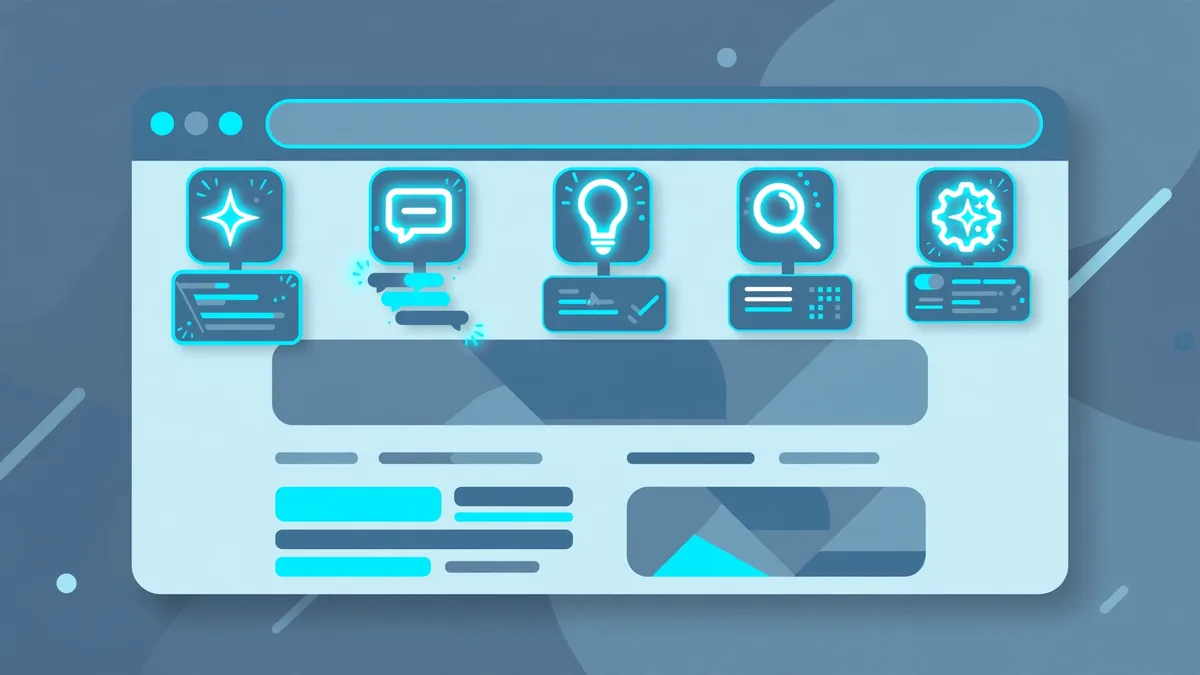
The all-in-one trap: do-everything AI browser extensions are convenient but mediocre at each job. The best AI browser extensions strategy is one strong generalist plus specialists for your top two tasks. Audit quarterly — AI browser extensions multiply fast, and each one reads your browsing data.
Sider — Best Overall Sidebar Assistant
Sider injects an AI sidebar into any webpage, letting you chat with multiple models (including GPT-class and Claude-class options), summarize the current page, translate, and rewrite selected text. Its standout trait is multi-model comparison — run the same prompt through several models side by side and pick the best answer. The free tier provides a daily quota of queries sufficient for regular use; paid plans start at just a few dollars per month for the entry tier, scaling up for heavy users. If you install exactly one AI extension, comparative roundups in 2026 consistently point here: it covers summarization, writing, translation, and Q&A over page content in a single tool.
Monica — Best for Content Creation Plus Image Generation
Monica is a similar sidebar assistant with an emphasis on content workflows: email drafting, social posts, and article outlines, plus built-in image generation that most competitors lack. The free tier offers a few dozen queries per day — enough to test every feature properly — and paid plans start under $10 per month. The interface is polished and beginner-friendly, which matters for a tool you will invoke fifty times a day. Choose Monica over Sider if image generation inside the browser matters to you; choose Sider if multi-model comparison matters more.
Merlin AI — Best for Quick Summaries and Cross-Page Q&A
Merlin focuses on speed: summarize any article, ask questions about the page, and draft text with minimal clicks. Its free tier historically offered one of the more generous daily query allowances in the category (around 50 queries per day in published comparisons), and paid plans start in the mid-teens per month. Merlin is the right pick if your primary use is “summarize this page I’m reading” repeated all day — researchers, analysts, and news-heavy readers get the most from it.
ChatGPT for Chrome (Official) — Best Direct GPT Access
OpenAI’s official extension puts GPT access in the browser with page-context features. The free tier works with a free ChatGPT account; the full experience pairs with a $20-per-month Plus subscription for GPT-4o-class models. The advantage is official integration and no third-party intermediary reading your prompts — your data relationship is directly with OpenAI under its published terms. The disadvantage is single-model access: no Claude or Gemini comparison. Pick this if you already pay for ChatGPT Plus and want the cleanest setup.
The Best Writing Assistants
Grammarly — Best for Everyday Writing Polish
Grammarly remains the default writing assistant for a reason: it works in virtually every text field on the web — Gmail, Google Docs, LinkedIn, social composers — offering real-time grammar correction, clarity suggestions, and tone detection. The free tier covers core grammar and spelling, which satisfies most users; Premium (around $12 per month) adds advanced rewrites, vocabulary enhancement, and plagiarism detection. In 2026 Grammarly has layered more generative AI features (drafting, ideation) on top of its correction engine. The honest assessment: free Grammarly plus an all-in-one sidebar assistant covers nearly every writing need without paying.
Compose AI — Best for Writing Speed
Compose AI takes a different approach: AI-powered autocomplete inside any text box. Start typing an email and it suggests completions; highlight a sentence and get rephrase options. The free tier handles basic use, with Premium around $10 per month adding advanced rephrasing and longer completions. It shines for high-volume email and messaging — support staff, recruiters, and salespeople who write hundreds of short messages weekly. If your writing is mostly long-form documents, Grammarly’s deeper suggestions serve you better.
Wordtune — Best for Rephrasing and Clarity
Wordtune specializes in one thing: suggesting better ways to say what you wrote. Highlight any sentence and get alternatives ranging from casual to formal, shorter to expanded. The free plan includes a daily allowance of rewrites sufficient for regular email and document polishing. It is the best specialist for non-native English speakers and anyone whose drafts are correct but clunky. Pair it with Grammarly (correction) rather than replacing it — they solve different halves of the writing problem.
The Best Summarizers and Research Tools
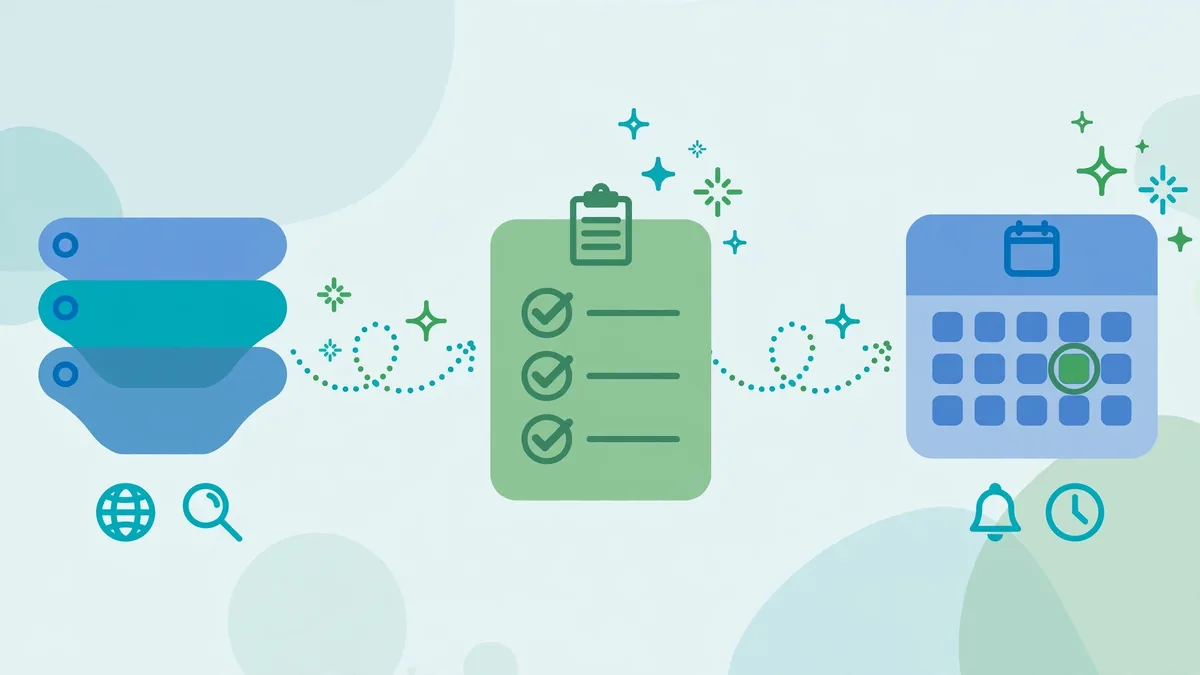
Summarizers worth installing: the AI browser extensions that summarize reliably share one trait — they show their sources with clickable citations. If an AI browser extensions summarizer gives you confident paragraphs with no links back to the page, verify everything before trusting it.
Perplexity — Best Free Research Assistant
Perplexity’s extension brings its answer engine into the browser: ask questions about the page you’re on or any topic, and get answers with cited sources you can verify. The free tier is genuinely generous — unlimited basic searches with a daily cap on advanced “Pro” searches — and Perplexity Pro at $20 per month unlocks GPT-4o and Claude-class models for complex queries. For research work where wrong answers cost real money, cited sources are the killer feature: you can check every claim instead of trusting the model. No other free extension matches it for source-backed research.
TLDR This — Best One-Click Article Summarizer
Sometimes you do not want a chat sidebar — you want a button that turns a 4,000-word article into five bullet points. TLDR This does exactly that, with adjustable summary length and key-point extraction. The free version handles typical daily summarization needs. It is the lightest-weight pick in this guide: no account needed for basic use, minimal permissions, instant results. Keep it alongside a heavier assistant for the days when you just need the gist.
Glasp — Best for Social Highlighting and Knowledge Capture
Glasp lets you highlight text on any webpage or YouTube video, add notes, and build a public or private library of your highlights — with AI summaries of what you captured. The social layer (seeing what others highlighted on the same article) is surprisingly useful for research, surfacing the passages other readers found important. The free tier is fully functional for personal use. Researchers, students, and anyone building a long-term knowledge base get unique value here that pure summarizers do not provide.
Consensus — Best for Academic and Scientific Research
A niche but powerful pick: Consensus searches peer-reviewed research and returns cited, evidence-based answers instead of general web content. If your work touches science, medicine (general information, not personal advice), or academic topics, it filters out the SEO-content noise that pollutes regular search results. The free tier covers meaningful daily use. Pair it with Perplexity: Perplexity for general research, Consensus when you need actual studies.
Workflow Automation Bonus Picks
Bardeen — Best No-Code Browser Automation
Bardeen deserves mention because it automates the repetitive browser work AI chat cannot: scraping lists into Google Sheets, triggering multi-app workflows, enriching data. Its free tier covers basic playbooks, with paid plans from around $10 per month for higher volume. Example workflows: scrape a directory of company pages into a spreadsheet, or auto-save meeting action items to Notion. It is less “AI chatbot” and more “robot that does your clicking” — and for operations-heavy roles, it saves more time than any summarizer.
Tactiq — Best for Meeting Transcription
Tactiq transcribes Google Meet, Zoom, and Teams calls live in the browser, generating summaries and action items. The free tier covers light meeting loads. If your calendar is wall-to-wall video calls, automatic transcripts with searchable history eliminate the “wait, what did we decide?” problem permanently. Note the etiquette and legal side: inform participants when meetings are being transcribed, and check your jurisdiction’s consent requirements for recording.
Permissions to Watch Before You Install
Permission hygiene: “read and change all your data on all websites” is the nuclear option — grant it only to AI browser extensions from vendors you would trust with your email password. Prefer AI browser extensions that request per-site access, and revoke anything you have not used in a month.
This is the section most roundups skip, and it matters more than any feature comparison. A browser extension with broad permissions can read everything you do online. Before installing any AI extension, open its Chrome Web Store listing and check the requested permissions:
“Read and change all your data on all websites” — the big one. Many AI assistants request this because they need page content to summarize it. It is functionally necessary for the feature — but understand what it means: the extension can technically access every page you visit, including banking, email, and internal company tools. Mitigations: prefer extensions from established companies with published privacy policies; check whether the extension processes page content locally or sends it to servers; and consider disabling the extension (or using a separate browser profile) when doing sensitive work like banking.
Browsing history access. Some extensions request history to offer “ask about pages you visited” features. Ask whether you actually need that feature — it is the most privacy-expensive permission on the list.
Clipboard and keystroke-adjacent access. Writing assistants necessarily observe what you type in text fields. That is the product working as intended, but it means your drafts — including the email you decided not to send — pass through the extension. Avoid typing passwords, API keys, or sensitive personal data into fields while AI writing tools are active, or pause the extension for those moments.
Third-party data sharing. The extension’s privacy policy (not the Chrome Web Store blurb — the actual policy) should state whether your prompts and page content are used for model training, shared with subprocessors, or sold. If you cannot find a policy, do not install it. This connects directly to the broader discipline of using AI tools safely: the same data-retention questions apply inside the browser.
Red flags that should stop an install: no findable privacy policy, permissions far broader than the feature set (a summarizer asking for download management), a brand-new publisher with no track record requesting full site access, or reviews mentioning unexpected behavior.
AI Browser Extensions: Building Your Minimal Stack
Here are three recommended combinations for common profiles — each stays within free tiers unless noted:
The researcher: Perplexity (cited research) + TLDR This (quick summaries) + Glasp (highlight library). Total cost: $0. Covers deep research, fast triage, and long-term knowledge capture.
The writer: Grammarly free (correction) + Sider free tier (drafting, rewriting, multi-model comparison). Total cost: $0. Covers everything from typo-catching to first drafts.
The operator: Sider or Monica (all-purpose assistant) + Bardeen free (browser automation) + Tactiq free (meeting transcripts). Total cost: $0. Covers drafting, repetitive browser work, and meeting memory.
The upgrade path, when free quotas pinch: pay for exactly one tool — usually the all-in-one assistant you invoke most — and keep the specialists on free tiers. Paying for three overlapping AI subscriptions is the most common waste in this category.
Performance and Battery Notes
Individually, these extensions are lightweight. Collectively, they are not. Each active extension consumes memory and can inject scripts into every page load. Practical guidance: keep your daily drivers enabled, and disable the rest via Chrome’s extension manager (or an extension manager extension) when not in use. If pages feel sluggish, the culprit is usually the stack, not any single tool — audit quarterly and remove what you have not invoked in a month.
Keep Exploring These Guides
If you found this ai browser extensions walkthrough useful, these related guides go deeper on adjacent workflows:
- Gemini vs ChatGPT for Google Workspace Users (2026)
- What Are the Best AI Tools? A Use-Case-First Guide for 2026
Frequently Asked Questions
Are AI browser extensions really free?
Most operate on a freemium model: a functional free tier with daily or monthly query caps, and paid plans (typically $5–$20 per month) that raise limits or unlock premium models. For light to moderate daily use — a handful of summaries and drafts — the free tiers of Sider, Monica, Merlin, Perplexity, and Grammarly are genuinely sufficient. You only need to pay when free quotas consistently run out before your workday ends.
Do AI extensions slow down Chrome?
One or two are negligible; five or more active simultaneously can noticeably affect page-load times and memory usage. The slowdown comes from stacking, not from any single tool. Keep your active set to two or three daily drivers and disable the rest when not in use.
Can my employer see which extensions I install?
On a managed work device, quite possibly yes — IT administrators can inventory installed extensions through device management policies, and many companies maintain allow-lists for browser add-ons. Check your company’s acceptable-use policy before installing AI tools on a work machine, especially ones that read page content.
Is it safe to let an AI extension read my web pages?
It is a calculated trade-off. Page-reading permission is required for summarization features to work, but it technically grants access to everything you browse, including sensitive pages. Reduce risk by choosing extensions from established vendors with published privacy policies, reviewing what data leaves your device, and disabling the extension (or using a separate browser profile) for banking, health portals, and internal company systems.
Which AI browser extension is best for students?
Perplexity for cited research, TLDR This for digesting long readings, and Glasp for building a highlight library across sources — all free. Add Grammarly’s free tier for essay polishing. This combination covers research, comprehension, and writing without spending anything.
Sider vs Monica vs Merlin — which should I choose?
All three are capable all-in-one sidebar assistants with free tiers. Choose Sider for multi-model comparison, Monica for built-in image generation and content workflows, and Merlin for the most generous-feeling free query allowance focused on fast summarization. Since all have free tiers, the honest answer is to try each for a week with your real workload — the best interface is the one you actually invoke.
Do AI browser extensions slow down Chrome?
Some do, noticeably. AI browser extensions that inject sidebars or monitor every page add memory overhead — check Chrome’s task manager (Shift+Esc) to find the culprits. The leanest AI browser extensions activate only when you click them; prefer those over always-on monitors.
Conclusion
The best AI browser extensions in 2026 are the ones you will actually use fifty times a day — which means the free tier matters more than the feature list. Start with one all-in-one assistant (Sider, Monica, or Merlin), add Perplexity for research you can verify, and keep Grammarly’s free tier for writing. That is a complete productivity setup at zero cost. Install two AI browser extensions this week, use them daily, then decide what earns a permanent slot.
Then do the unglamorous part: read the permission prompts before you click accept, remove extensions you have not used in a month, and keep sensitive browsing in a profile without AI tools active. The productivity gains are real — the privacy diligence is what keeps them safe.
Disclosure: this article contains affiliate links. If you purchase through them, we may earn a commission at no extra cost to you. See our Affiliate Disclosure.





Join the discussion
Have a question or a perspective to share?