
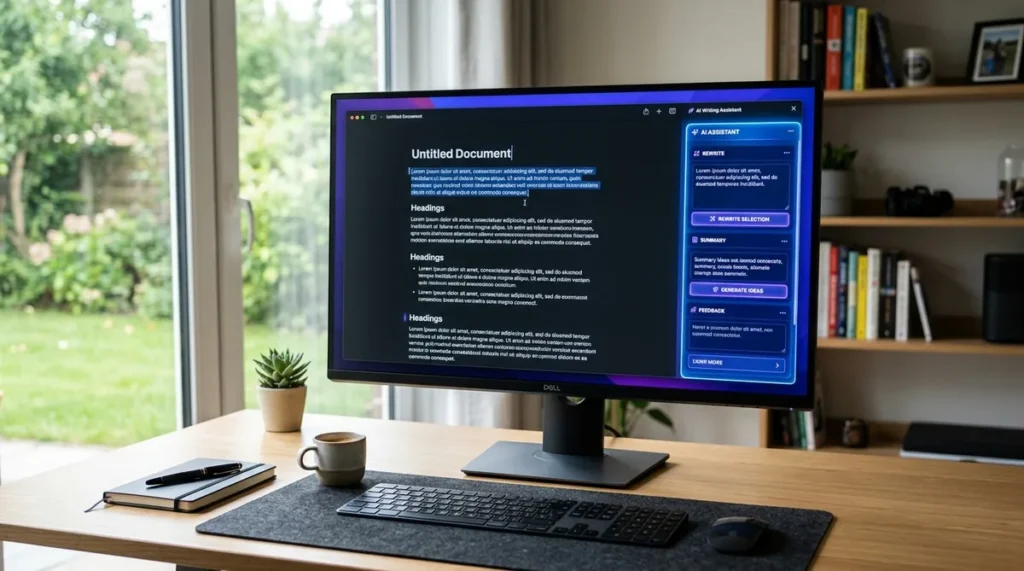
Picture this: it is your first week at a new job, and you need to document the team’s deployment workflow before Friday. You open your company laptop, head to the Chrome Web Store to grab a screen-capture tool, and hit a wall — extension installs are blocked by IT. The exception form takes three weeks. Your deadline is in three days.
This is a more common situation than most software vendors admit. Locked-down corporate laptops, managed Chromebooks in schools, security-conscious clients, and regulated industries all share one rule: nothing gets installed in the browser without a review. That is exactly why this guide exists. Below you will find the best AI documentation tools that need no browser extension — full-featured options that capture your process through a desktop app, a web-based recorder, or a simple upload, and turn it into polished step-by-step guides.
If your situation is the opposite and you are free to install whatever you like, extensions are still a fine route. But when the extension door is closed, these seven tools keep you productive anyway.

Why some teams cannot (or will not) install browser extensions
Before the tool list, it helps to understand the constraint, because it shapes which tool fits best. Browser extensions sit in a uniquely sensitive spot: they can read page content, monitor keystrokes, and observe everything you do in the browser. That is precisely why IT departments treat them with suspicion.
The most common blocker is enterprise device management. Companies running managed Chromebooks or Windows machines with group policies often disable the Chrome Web Store entirely. Getting an exception means a security review, a risk assessment, and a wait that no sprint plan accounts for. Schools and universities operate the same way — thousands of student devices, one IT team, zero appetite for reviewing every extension a teacher wants.
Then there is the compliance angle. Teams in healthcare, finance, and government frequently work under rules that restrict what software can observe on-screen data. An extension with broad page-read permissions can be a non-starter even when the tool itself is trustworthy, because the permission model is what auditors flag, not the vendor’s intentions.
Finally, some people simply prefer a cleaner browser. Extensions add memory overhead, slow down page loads, and expand the attack surface of the most-targeted application on your computer. Choosing AI documentation tools that work without a browser extension is not just a workaround for locked-down devices — for many teams, it is the more deliberate, more secure choice.
How extension-free documentation tools actually capture your screen
If there is no extension watching your clicks, how does the AI know what you did? The tools below use three different approaches, and knowing them helps you pick the right one.
Desktop recorder apps are the most capable option. You install a small native application (not a browser add-on), hit record, and walk through your process in any software — a browser, a desktop app, a terminal, even multiple monitors. Because the recorder lives at the operating-system level, it sees everything and usually produces the most accurate step detection.
Web-based capture runs entirely in the tool’s website. You start a capture session from the web app itself, often using the browser’s built-in screen-sharing API (the same “share your screen” prompt you see in video calls). Nothing is installed; the browser you already have does the work.
Upload-and-generate is the simplest path of all: record your screen with whatever you already own — the built-in recorder on Windows, macOS, or your phone — upload the video, and let the AI convert it into documentation. This approach works with literally any tool that accepts uploads, and it is a lifesaver when you cannot install anything at all.
The 7 best AI documentation tools that need no browser extension
Every tool below can take you from a live process to a finished, shareable guide without requiring a browser extension at any point. They are ordered by overall usefulness for the widest range of teams.
1. Scribe — the best all-rounder for fast SOPs
Scribe is the best-known name in auto-generated process documentation, and most people meet it as a Chrome extension. What fewer people realize is that Scribe also ships a dedicated desktop recorder for Windows and Mac, available on its paid plans, that captures any application on your screen — browsers, desktop software, internal tools, everything — with no browser extension involved. Free accounts capture browser-based processes through Scribe’s browser extension, so the desktop recorder on a paid plan is the route that keeps Scribe fully extension-free.
The workflow is disarmingly simple: start the recorder, click through your process normally, and stop. Scribe’s AI converts the capture into a step-by-step guide with annotated screenshots, written instructions for each step, and click indicators. You can then edit step text, redact sensitive information, combine multiple guides into a single page, and share via link or embed in a wiki, help center, or Notion page.
Where Scribe earns its reputation is editing speed. The generated drafts are unusually clean, so the “fix-up” pass that other tools demand is often a two-minute job here. Export options include PDF, Markdown, and HTML, which makes it easy to move guides into whatever system your team already uses.
The trade-off is that the desktop recorder — the piece that makes Scribe fully extension-free — sits behind a paid plan. The free tier covers web-process capture with a limited number of guides. For teams documenting browser-based workflows on a budget, the free tier is genuinely useful; for teams that need desktop software documented, the paid tier is the real product. Either way, no extension is required.
2. Tella — the best for polished video walkthroughs
Tella is a browser-first screen recorder built for creators and SaaS teams whose documentation needs to look produced. You record straight from its web app — the browser’s standard screen-share prompt handles capture, so nothing is installed — or from its native macOS desktop app. Recordings come out looking edited even when you touched nothing afterward: auto-zoom follows your cursor, layouts switch between webcam bubble and side-by-side mid-recording, and backgrounds are customizable. The in-browser editor adds trimming, auto-subtitles, and AI noise removal.
The output is video-first: finished recordings land on a hosted page with viewer analytics, comment threads, and custom-domain sharing, or export as MP4. What Tella will not give you is the annotated step-by-step screenshot guide that Scribe or Folge produce — pair it with a text-first tool if written SOPs are part of the deliverable. There is no free tier (a 7-day trial covers evaluation), with paid plans starting around $13 per user per month billed annually.
For teams whose documentation is really a library of product walkthroughs — onboarding videos, feature tours, course content — Tella’s polish-per-minute is difficult to match without hiring an editor.
3. Trupeer — the best for video plus written docs from one recording
Trupeer starts from a simple observation: most teams need both a video and a written guide, and creating them separately doubles the work. The extension-free way to use it is the upload path: record your workflow with whatever you already own — your operating system’s built-in recorder, a phone, anything — then upload the rough footage. Trupeer’s AI turns it into two polished outputs: a video with AI voiceover, zooms, and highlights, and a structured written guide with automatic screenshots and step detection.
No browser extension is involved in this workflow. The script-based editing is the standout feature: instead of re-recording when you flub a line, you edit the transcript text and the video updates to match. (Note: Trupeer’s direct capture is delivered through a Chrome extension, so on extension-locked machines the upload route above is the one to use.)
Trupeer is at its best for training and onboarding content — the kind of documentation someone watches once and references later. If you only need a quick text guide for a simple process, it can be more tool than necessary. But when the deliverable is “a video and a guide, both polished, by end of day,” recording once and getting both is a genuine time saver.
4. Whale — the best for documentation plus team training in one place
Whale combines process documentation with training management, which makes it a natural fit for operations teams and franchises. You capture a process through the web-based app — no extension required — and Whale’s AI drafts the SOP for you. From there you can assign the resulting procedures as training, track who has read and confirmed each one, and keep everything in a searchable company playbook.
The AI angle goes beyond first-draft generation. Whale includes an assistant that answers employee questions from your own documentation, which turns the SOP library from a static wiki into something closer to an internal help desk. For teams where “the docs exist but nobody reads them” is the chronic complaint, tying documentation to assigned training with per-person progress tracking addresses the actual problem.
Whale offers a free tier aimed at small teams, with paid plans unlocking more members and creators. It is heavier than a pure capture tool — there is onboarding involved in setting up the playbook structure — but for organizations standardizing operations across locations or departments, that structure is the point.
5. Dadan — the best budget all-rounder
Dadan takes the “one recording, multiple outputs” idea and aims it squarely at small teams and solo creators. The extension-free routes are its desktop apps for Mac and Windows, or uploading a recording you made elsewhere: Dadan’s AI then produces both a written step-by-step guide and a video version. (One caveat: Dadan’s newer step-by-step Guides feature captures through its browser extension, so on extension-locked machines use the desktop app or the upload path.) The free plan covers enough guides and videos to evaluate it on real work.
The appeal here is value. Dadan’s paid tiers are priced well below most competitors in this space while covering the core workflow: capture, AI-generated guide and video, sharing by link or embed. It does not have the deepest editing suite or the most advanced analytics, but the fundamentals are solid and the learning curve is short.
For freelancers, startups, and small support teams that need decent documentation output without a per-seat enterprise bill, Dadan is the pragmatic pick. It will not replace a full customer-education platform, and it does not try to.
6. Folge — the best fully offline option
Folge is the outlier on this list, and for some readers it will be the most important entry. It is a desktop-only documentation tool that works entirely offline: you buy it once (a one-time license rather than a subscription), install it on Windows or Mac, and it never sends your screen captures to anyone’s cloud.
The workflow is classic auto-documentation: perform your process while Folge records, and it assembles a step-by-step guide with screenshots and annotations. There is no AI voiceover or video generation here — this is a focused tool for written guides — but what it does, it does without any network dependency whatsoever.
If you document internal systems, unreleased products, or anything covered by strict confidentiality rules, the offline architecture is the whole selling point. No extension permissions to audit, no cloud storage to approve, no data leaving the machine. For everyone else, the cloud tools above are more convenient — but convenience is not the metric when secrecy is the requirement.
7. Loom — the best for quick video docs with AI summaries
Loom is primarily an async video messaging tool rather than a documentation platform, but its AI features earn it a place here. Record with the Loom desktop or mobile app — again, no browser extension needed — and the AI generates a title, a written summary, chapters, and action items from your recording.
The use case is the 30-second explanation: a teammate asks how to do something, you record a quick walkthrough, and Loom’s AI summary serves as the lightweight written documentation attached to it. Viewers can read the summary instead of watching, search across transcripts, and jump to chapters. For teams drowning in “quick question” interruptions, this pattern replaces a surprising amount of formal documentation.
Loom will not produce the structured, screenshot-annotated SOPs that Scribe or Folge generate. Think of it as documentation for everything too small to deserve a formal guide — which, in most teams, is most things.
Quick comparison: extension-free AI documentation tools
If you are choosing between them, here is the short version:
- Scribe — Desktop recorder (paid) or web capture (free); annotated step-by-step guides; best all-rounder for SOPs.
- Tella — Web app or macOS capture; auto-styled videos with subtitles and analytics; best for polished video walkthroughs.
- Trupeer — Upload a recording you made elsewhere; polished video plus written guide; best for training content.
- Whale — Web app capture; SOPs tied to assigned training; best for operations teams.
- Dadan — Desktop app or upload; guide plus video at a budget price; best value pick.
- Folge — Offline desktop app; written guides only; best for sensitive or confidential processes.
- Loom — Desktop/mobile recorder; AI summaries and chapters on quick videos; best for lightweight async explanations.

Two popular tools that do require an extension (and when to consider them anyway)
Three big names are deliberately missing from the list above: Tango, Guidde, and Trainn. All three are excellent documentation tools, but their core capture flows are built around a browser extension — Tango’s capture depends on its Chrome extension, Guidde’s standard recording runs through its extension, and Trainn’s recorder is likewise delivered as a Chrome extension. If “no extension, period” is your hard requirement, they are disqualified on technical grounds, not on quality.
That said, constraints change. If your IT department ever approves extension installs, or if you are documenting on a personal machine, both deserve a look. We cover the extension-first side of this market in our roundup of the best AI browser extensions for productivity, which is the right next read once the extension door opens.
How to pick the right tool for your team
Start with the output you actually need. If the deliverable is a written SOP library, Scribe or Folge will get you there fastest. If stakeholders expect videos — for onboarding, customer training, or a help center — shortlist Tella, Trupeer, or Dadan. Tella produces the most polished video; Trupeer and Dadan produce video and written formats from a single capture.
Next, weigh sensitivity against convenience. Cloud-based AI tools are more convenient: automatic backups, shareable links, collaborative editing. But every screenshot leaves your machine. If you are documenting financial systems, unreleased products, or client data, Folge’s offline model — or at minimum a tool with reliable redaction like Scribe’s blur features — is worth the trade-off.
Then consider who creates versus who consumes. Tools like Whale assume a team: creators, viewers, admins, analytics. If you are a solo operator documenting your own processes, that machinery is overhead; Scribe, Dadan, or Loom will feel lighter. Match the tool’s organizational assumptions to your reality, not to an aspirational version of your team.
Finally, test with real work before committing. Every tool above offers a free tier or trial. Document one actual process end to end — capture, edit, share — and time how long the edit pass takes. The capture step is commoditized; the quality of the AI’s first draft and the speed of fixing it are where these tools actually differ.
Final thoughts: documentation without the extension hassle
The assumption that good AI documentation tools need a browser extension is outdated. Desktop recorders now match extension-based capture for accuracy, web-based capture handles browser workflows with nothing to install, and upload-based generation works with footage from any recorder you already own. The seven AI documentation tools with no browser extension requirement above cover every realistic scenario: fast SOPs, polished video walkthroughs, video-plus-guide output, offline secrecy, and quick async explanations.
Pick the one whose output matches your deliverable, run a real process through its free tier, and measure the editing time. The best documentation tool is not the one with the longest feature list — it is the one whose first draft needs the least fixing.

Frequently Asked Questions
Do AI documentation tools work without a browser extension?
Yes. Many capture your screen through a desktop recorder app, through the browser’s built-in screen-sharing prompt launched from the tool’s website, or by letting you upload a recording you made with any screen recorder. No extension installation is required for any of these paths.
Are extension-free tools less accurate than extension-based ones?
Not inherently. Accuracy depends on the capture engine, not on whether it lives in an extension. Desktop recorders observe at the operating-system level and typically detect clicks, keystrokes, and window changes very reliably — often more reliably than extensions, since they are not limited to browser content.
Which tool is best for documenting sensitive internal processes?
Folge is the strongest option when confidentiality is paramount, because it works fully offline and nothing leaves your machine. If you prefer a cloud tool, choose one with solid redaction features — Scribe and Dadan both let you blur sensitive information in screenshots before sharing.
Can these tools document desktop software, not just websites?
Yes — this is where desktop recorder apps shine. Scribe’s desktop app, Trupeer, Folge, and Loom’s desktop recorder all capture any application on your screen, including desktop software, terminals, and multi-window workflows that browser extensions cannot see.
What is the catch with the free plans?
Free tiers typically limit the number of guides or videos per month, watermark video output, or restrict branding and export options. They are generous enough to evaluate the core workflow on real work, but teams producing documentation regularly will usually need a paid tier within a few months.
Sources and verification — October 2026: product capabilities were checked against vendor documentation, including Scribe’s desktop-app support page, Folge (folge.me), Dadan’s blog (desktop apps and the extension-based Guides feature), Trupeer’s blog (video-upload support), Tella’s browser-first recorder, Whale (usewhale.io), and Loom’s desktop recorder. Prices are vendor-listed and change frequently — confirm on each vendor’s pricing page before purchasing.





Join the discussion
Have a question or a perspective to share?