
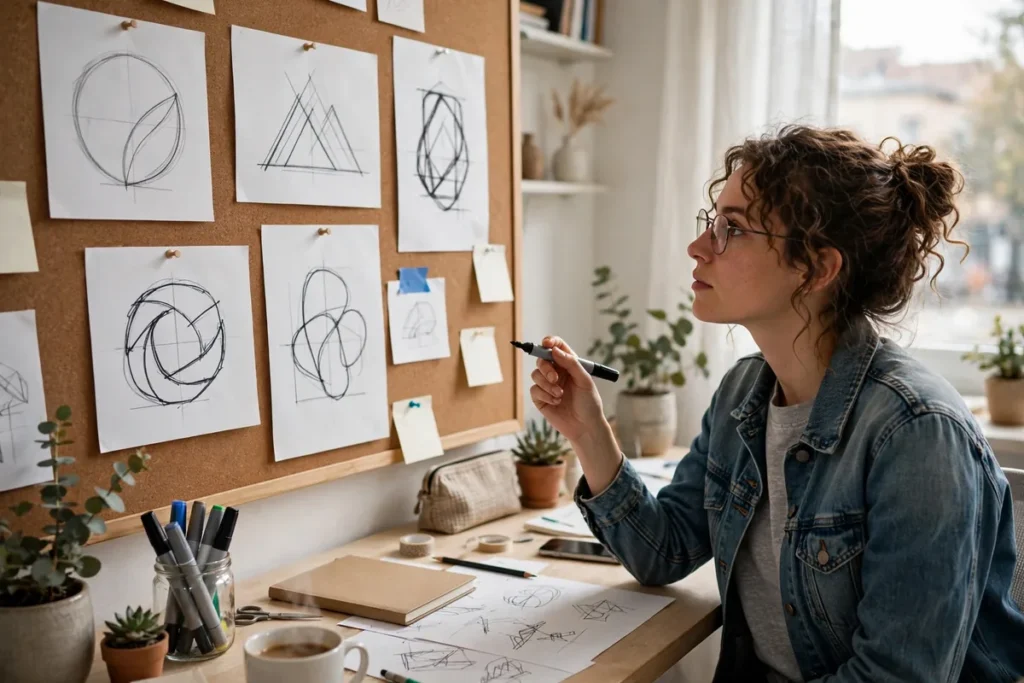
Introduction: The New Era of AI-Assisted Creativity
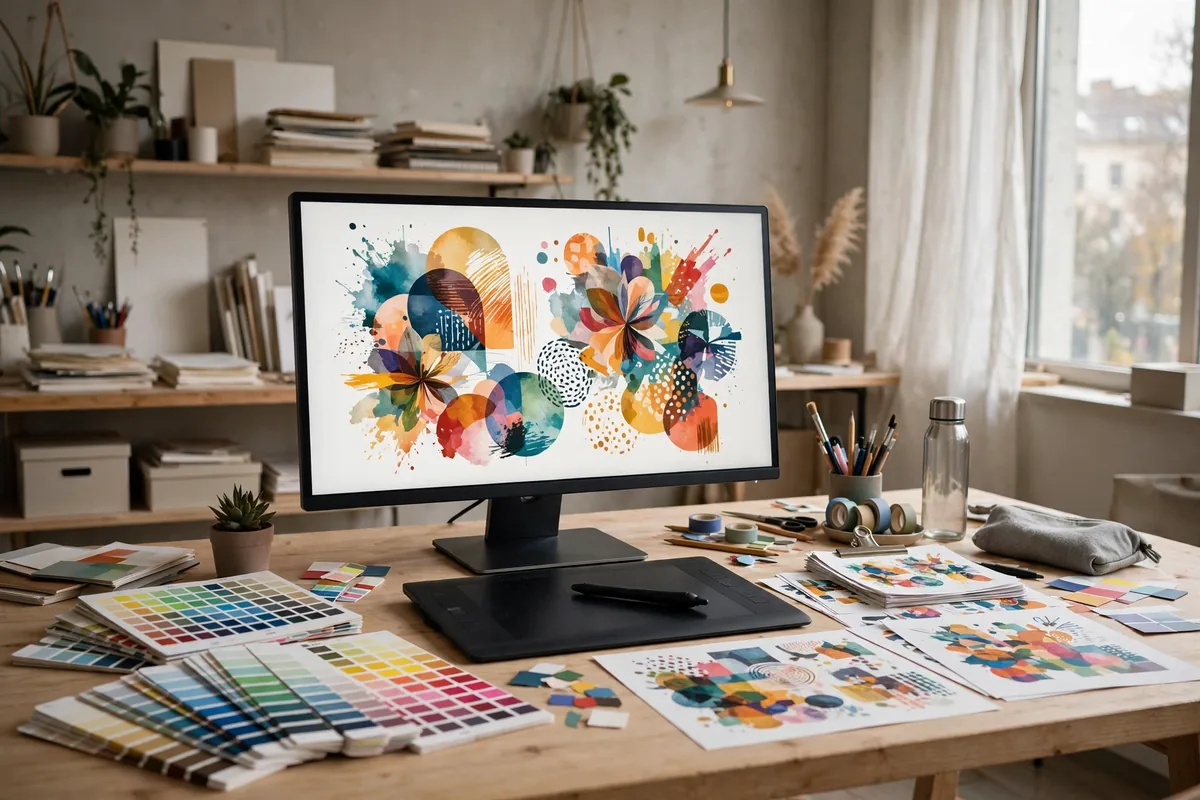
The landscape of visual communication is shifting beneath our feet. For modern creators, the question is no longer whether to adopt artificial intelligence, but rather how to use AI for graphic design projects to stay competitive. By integrating generative tools into your daily routine, you move beyond simple manual labor toward a role focused on creative direction and strategic refinement. This guide provides actionable steps for designers aiming to bridge the gap between human intuition and machine-speed execution.
Learning how to use AI for graphic design projects allows you to automate repetitive tasks, freeing up precious hours for high-level conceptual work. Whether you are a solo freelancer or part of a bustling creative agency, these AI workflows ensure that your output remains sharp, consistent, and remarkably efficient.
Why AI Changes Graphic Design Workflows in 2026
By 2026, the industry has moved past the novelty phase of generative AI. We are now in an era where machine learning is an essential professional partner rather than a mere digital gimmick. The primary shift lies in integration; AI is no longer a separate, clunky browser window, but an embedded engine within our standard creative software stacks.
This transition enables a non-linear design process. Where we once spent hours on pixel-perfect masking or manual font matching, we now delegate those chores to AI, allowing us to pivot from concept to iteration in minutes. Mastering how to use AI for graphic design projects is about speed and precision—it is about leveraging data-backed design principles to ensure that every creative choice is optimized for the intended audience. As you explore these workflows, consider how these tools serve as a force multiplier for your existing expertise rather than a replacement for your artistic vision.
Workflows Overview
- Rapid Ideation and Moodboarding
- Automated Asset Upscaling and Restoration
- Smart Background Removal and Subject Isolation
- Color Palette and Typography Generation
- AI-Assisted Vectorization and Logo Refinement
- Dynamic Mockup Creation for Client Presentations
- Layout and Composition Optimization
- Iterative Design Variations for A/B Testing
Workflow 1: Rapid Ideation and Moodboarding
Before touching a pixel in Photoshop, use AI to map out your visual strategy. This workflow is the foundation of how to use AI for graphic design projects, ensuring your project has a cohesive aesthetic from the start.
- Craft a Brief: Write a detailed prompt in an LLM (like Claude or GPT-4o) describing your target audience, tone, and industry constraints.
- Generate Visual Prompts: Ask the LLM to output 5-10 specific descriptive prompts for an image generator.
- Execute Visualization: Use top-tier image generators to turn those prompts into moodboard tiles.
- Curate: Compile these into a digital board to share with stakeholders for early alignment.
Pro Tip: Use negative prompts in your image generation settings to strictly exclude specific styles or colors that don’t fit the brand guidelines.
Workflow 2: Automated Asset Upscaling and Restoration
High-quality print work demands high resolution, but client-provided assets are rarely perfect. This workflow restores legacy images to professional standards.
- Assess Assets: Identify images with noise, compression artifacts, or low resolution.
- AI Processing: Run these files through specialized upscaling software (like Topaz Photo AI or Magnific).
- Refine: Use the “Face Recovery” feature if the asset includes portraits to ensure natural skin texture.
- Export: Save as a high-fidelity TIFF or PNG for your design file.
Pro Tip: Always create a “smart object” in your design software before upscaling so you can swap in the original file if the AI creates unintended artifacts.
Workflow 3: Smart Background Removal and Subject Isolation
Complex selections that once took thirty minutes now take seconds. This is a critical step when learning how to use AI for graphic design projects to ensure clean, professional composites.
- Import: Bring your raw assets into a tool with integrated AI masking (like Adobe Photoshop’s “Select Subject” or Remove.bg).
- Analyze: Let the algorithm distinguish between fine details like hair and the background.
- Refine: Use the “Refine Edge” tool to smooth out transition zones.
- Mask: Apply the selection as a non-destructive layer mask.
Pro Tip: If working with complex backgrounds, use an “AI Object Selection” tool first, then manually brush in any missed details using a soft pressure-sensitive stylus.
Workflow 4: Color Palette and Typography Generation
Consistency is the mark of a pro. AI tools can analyze psychological color theory and font pairings to ensure brand alignment.
- Seed: Upload a reference image or logo that defines the project’s “vibe” into an AI color engine (like Adobe Color’s AI tools).
- Generate: Use the tool to extract harmonious palettes based on complementary, analogous, or triadic models.
- Pair: Use a typography-focused AI tool to suggest font families that match the mood of the color palette.
- Test: Apply these to your wireframes to verify readability and accessibility standards.
Pro Tip: Always run your generated palette through a WCAG contrast checker to ensure your AI-suggested combinations are accessible for all users.
How to Use AI for Graphic Design Projects: 8 Practical Workflows
Integrating AI into your professional creative process is no longer optional—it is a competitive necessity. Whether you are a solo freelancer or part of a design agency, understanding how to use AI for graphic design projects can reduce production times by 40% or more, allowing you to focus on high-level strategy and client communication.
5. AI-Assisted Vectorization and Logo Refinement
Transitioning from a napkin sketch to a professional vector logo used to be a time-consuming manual task. Today, you can utilize AI tracing tools to automate this process. Start by digitizing your sketch with a high-resolution scan. Import this into an AI-powered vector engine like Vectorizer.ai or Adobe Illustrator’s “Image Trace” enhanced by Sensei AI. These tools intelligently differentiate between strokes and fills, producing clean SVG files that are instantly scalable. For those seeking specialized features, check out this guide on Best AI Logo Design: 7 Top Tools Compared (2026) to find the right software for your specific branding needs.
6. Dynamic Mockup Creation for Client Presentations
Client approval hinges on visualization. Instead of spending hours in Photoshop positioning smart objects, use generative AI tools like Flair.ai or Adobe Firefly to place your 2D designs into high-fidelity, photorealistic 3D environments. Simply upload your flat design, describe the desired setting (e.g., “a minimalist desk in a sunlit office”), and the AI will handle the perspective, shadows, and lighting reflections. This creates a compelling narrative that helps clients visualize the end product, significantly increasing approval rates.
7. Layout and Composition Optimization
AI is now capable of analyzing your design’s “visual weight” based on established gestalt principles. Tools like Attention Insight allow you to run a heat-map analysis on your composition before exporting it. By simulating human eye-tracking, these tools highlight where a viewer’s gaze is likely to land, helping you adjust your layout and hierarchy for better engagement. It is a data-driven approach to design that ensures your core message is never lost in a cluttered visual field.
8. Iterative Design Variations for A/B Testing
When working on digital ad campaigns, success often comes down to micro-adjustments. Rather than manually creating ten variations, use AI to generate permutations. Input your core brand guidelines, fonts, and assets into a tool like Canva’s Magic Design or Midjourney’s Vary Region feature. This workflow allows you to instantly generate diverse layouts, color schemes, or headline placements. By testing these variations systematically, you can rely on performance metrics rather than guesswork. Interestingly, similar efficiency gains are being seen in education; for instance, some educators have started utilizing AI for Teachers: 10 Practical Classroom Workflows to manage curriculum materials with the same agility professional designers use for asset production.
Tools You Will Need for These How To Use AI For Graphic Design Projects
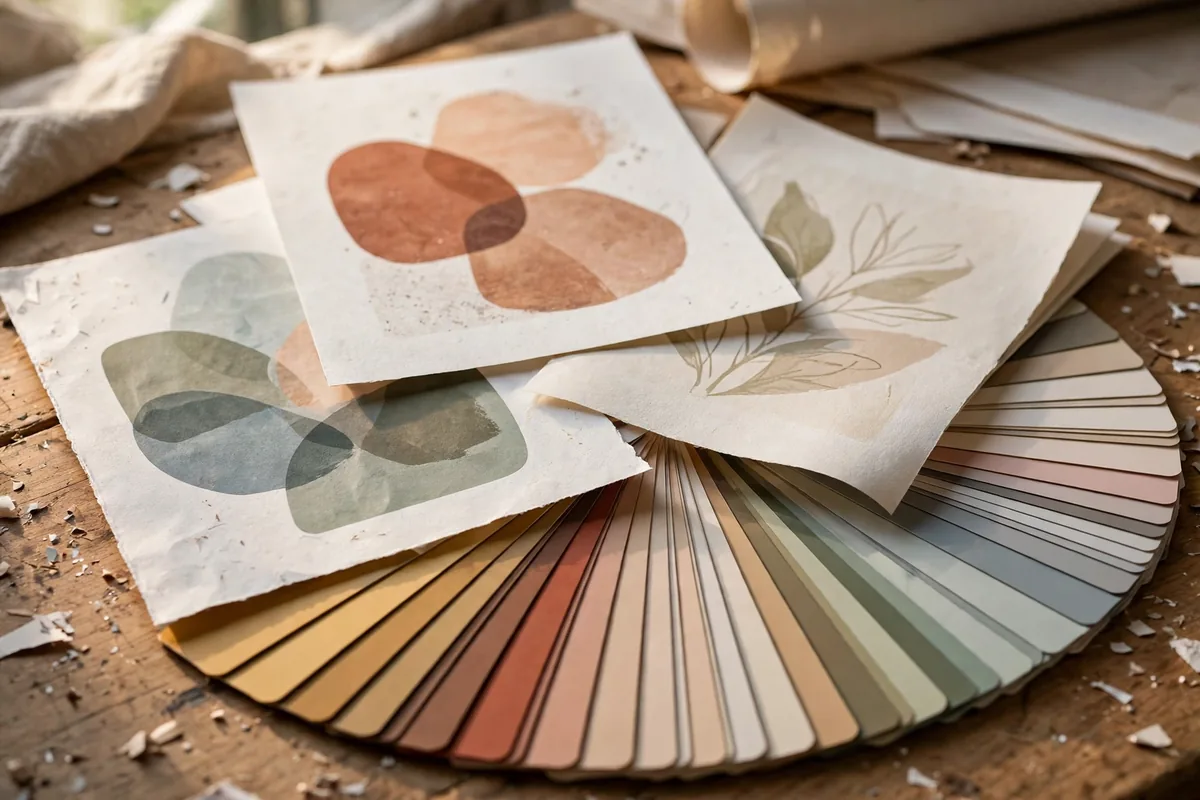
If you are just getting started with how to use AI for graphic design projects, you need a reliable, modular toolkit. Below is a breakdown of the software that will serve as the backbone of your professional workflow.
| Tool | Role in the workflow | Cost |
|---|---|---|
| Adobe Firefly | Generative fill & image expansion | Subscription (CC) |
| Vectorizer.ai | Vectorization of raster sketches | Per-use/Subscription |
| Attention Insight | Visual hierarchy & eye-tracking | Tiered subscription |
| Flair.ai | Product photography & mockups | Free / Tiered |
| Midjourney | Ideation & texture generation | Subscription |
| Canva Pro | Asset management & layout tools | Subscription |
By mastering how to use AI for graphic design projects, you move away from being a mere production laborer and evolve into a creative director who orchestrates intelligent tools to achieve premium results.
Common Mistakes to Avoid
Even experienced designers stumble when they first learn how to use AI for graphic design projects. Watch out for these pitfalls:
- Accepting the first output. AI generators produce plausible-looking work, not perfect work. Treat every generation as a rough draft and refine typography, spacing, and alignment by hand before delivery.
- Ignoring licensing terms. Not every AI tool grants commercial rights on its free tier. Read the terms before using generated assets in client work — a “free” image can become an expensive legal headache.
- Over-generating instead of deciding. It is tempting to produce fifty variations and hope one sticks. Set a hard limit (five to ten options), pick the strongest direction, and iterate from there.
- Skipping the brand guidelines check. AI does not know your client’s exact hex codes or tone of voice. Always run generated layouts against the brand sheet before presenting.
- Forgetting accessibility. AI-generated color pairings often fail contrast standards. Check every palette with a contrast checker so your designs work for all viewers.
- Using AI as a crutch for weak concepts. If the underlying idea is thin, no amount of generated polish will save it. AI accelerates execution; the concept still has to be yours.
Pro Tips to Level Up
Once the basics of how to use AI for graphic design projects feel natural, these habits separate good output from great output:
- Build a prompt library. Save every prompt that produced excellent results, organized by project type. Reusable prompts turn AI from a novelty into a dependable production line.
- Chain tools deliberately. Generate the base image in one tool, upscale in another, then finish typography manually. Each AI tool has a sweet spot — use each only where it excels.
- Keep a human-only final pass. Budget thirty minutes at the end of every project for manual kerning checks, margin alignment, and export settings. Clients notice this finish.
- Learn the negative prompt. Telling an image generator what to avoid (“no watermark, no extra fingers, no garish gradients”) improves results more than adding more adjectives.
- Version everything. Save iterations with clear names (v1-concept, v2-client-feedback). When a client asks to “go back to the earlier one,” you will be glad you did.
- Track what actually converts. If you design marketing assets, compare performance of AI-assisted versus fully manual pieces. Data beats opinions — a habit shared with anyone studying AI-driven data workflows already knows.
For a deeper look at the creative software behind these techniques, Adobe’s design resources and Canva’s design school both publish regularly updated guides on integrating AI into real production work.
FAQ
How long does it take to learn how to use AI for graphic design projects?
Most designers become productive within two to three weeks of daily practice. The tools themselves are simple; the real learning curve is prompt craft and knowing which steps to keep manual. Start with one workflow — background removal or ideation — and expand from there.
Do I need expensive software to use AI for graphic design?
No. Free tiers from major platforms cover ideation, background removal, and basic generation well enough for learning. Paid plans matter when you need commercial licensing, higher resolution exports, or API access for team workflows.
Will clients accept AI-assisted design work?
Yes, provided the final quality meets professional standards and you disclose your process where contracts require it. Clients pay for outcomes — clean layouts, on-brand visuals, on-time delivery. Few care which tools produced the first draft, and many now expect AI-assisted turnaround speeds.
What is the biggest limitation of AI in graphic design projects?
Typography and precise layout control. Generators still garble text and misjudge alignment, which is why the standard professional approach is AI for imagery and ideation, manual work for type and final composition. Understanding how to use AI for graphic design projects means knowing exactly where the machine stops and the designer starts.
Can AI replace a graphic designer entirely?
Not for professional work. AI excels at production speed but cannot run a discovery call, interpret vague client feedback, or make judgment calls about brand strategy. Designers who master these workflows become more valuable, not less — they deliver more, faster, at higher quality.
Conclusion
Learning how to use AI for graphic design projects is less about mastering any single tool and more about redesigning your process around what machines do best. Delegate the repetitive production work, keep the creative decisions firmly in human hands, and build a prompt library that compounds in value with every project.
The designers thriving in 2026 are not the ones who resisted AI or the ones who handed everything to it — they are the ones who integrated it deliberately, workflow by workflow. Start with one technique from this guide today, measure the time it saves, and let that momentum carry you into the next.
META_TITLE: How to Use AI for Graphic Design Projects (2026)
META_DESCRIPTION: Learn how to use AI for graphic design projects with 8 practical workflows — ideation, mockups, typography, and pro tips for 2026.
TAGS: AI graphic design, design workflows, AI for designers

Join the discussion
Have a question or a perspective to share?