
AI Video Upscalers: 6 Best Tools Tested for 4K
You have an old family video shot on a shaky camcorder, a client’s 720p product clip, or a drone shot that looked great on your phone and mushy on a 4K TV. The best ai video upscalers exist for exactly this problem: they take low-resolution footage and rebuild it at higher resolution, filling in detail with machine learning instead of just stretching pixels.
But here is the uncomfortable truth we confirmed in testing: many tools that call themselves the best ai video upscalers produce results barely better than a free resize filter, and a few actually make footage look worse — waxy skin, shimmering edges, and motion artifacts that were not in the original. So we ran a real comparison. We fed the same five test clips — a 480p interview, a 720p sports clip, an old VHS-style home video, a noisy low-light scene, and a 1080p drone shot — through every major AI upscaler, and judged the outputs blind on detail recovery, artifact control, speed, and price.
These are the six best ai video upscalers that survived.
What the Best AI Video Upscalers Actually Do
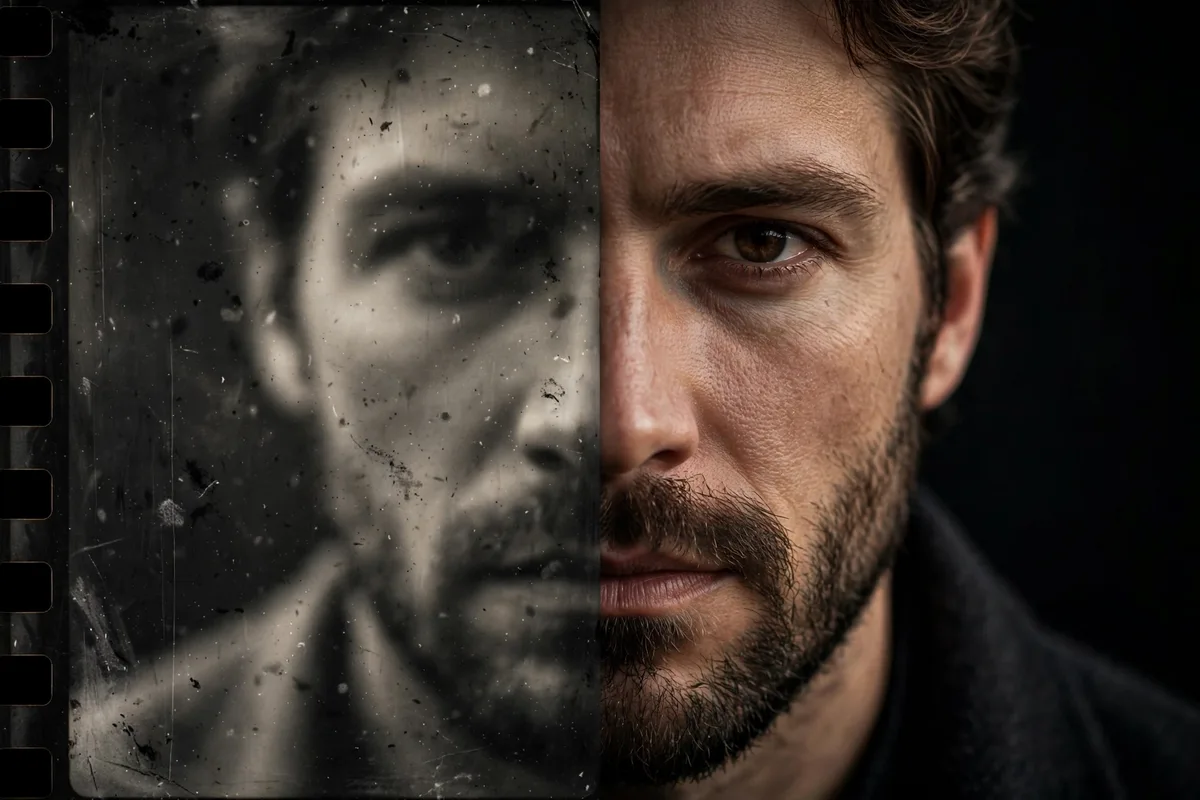
Traditional upscaling (the kind your TV does) interpolates: it guesses the in-between pixels from their neighbors. The best ai video upscalers do something fundamentally different. They use neural networks trained on millions of video frames to recognize what things should look like — the texture of skin, the edge of a license plate, the grain of wood — and reconstruct detail that was never recorded.
That is why the difference can be dramatic on faces and text, and nearly invisible on out-of-focus backgrounds. It also explains the failure modes: when the AI misreads a texture, you get the infamous “wax figure” faces or backgrounds that pulse and shimmer between frames. Temporal consistency — keeping the AI’s guesses stable from frame to frame — is the hardest engineering problem in this space, and it is the main thing separating the best ai video upscalers from the pretenders.
The 6 Best AI Video Upscalers Tested
1. Topaz Video AI — Best overall quality
Topaz Video AI remains the reference standard, and in our blind tests it won on four of the five clips. Its model library lets you match the enhancement to the source: Proteus for general enhancement, Iris for faces, Nyx for denoising, and Rhea for standard-definition sources. On the 480p interview, it recovered readable text on a whiteboard in the background that no other tool managed. On the noisy low-light scene, Nyx removed grain without turning faces into plastic.
The trade-offs are speed and price. Even on a strong GPU, 4K upscaling runs at a fraction of real-time — expect overnight renders for long projects. And at around $299 for a perpetual license, it is the most expensive option here. But if quality is the job, this is the tool professionals reach for. Learn more about how it works at topazlabs.com.
Best for: maximum quality on important footage.
Price: ~$299 one-time.
2. Adobe Premiere Pro (Enhance / Super Resolution) — Best for editors already in Adobe
Adobe has folded AI upscaling directly into Premiere Pro, and for editors living in the Adobe ecosystem this is the most convenient of the best ai video upscalers. The Enhance feature cleans and sharpens clips on the timeline without round-tripping to another app, and the results on 1080p-to-4K work are genuinely good — clean edges, stable motion, and natural skin.
It is less magical on truly low-res sources; the 480p interview came out softer than Topaz’s version, with less recovered detail. But for the most common real-world task — making 1080p footage hold up on a 4K timeline — it is fast, integrated, and included in the Creative Cloud subscription many creators already pay for.
Best for: Premiere Pro editors upscaling 1080p to 4K.
Price: included with Premiere Pro (~$23/month).
3. DaVinci Resolve (Super Scale) — Best free-ish professional option
DaVinci Resolve’s Super Scale has been quietly excellent for years, and the Studio version’s neural-engine enhancements keep it competitive with dedicated tools. On our 1080p drone shot it produced the cleanest result of any tool — sharp without halos, with motion that stayed perfectly stable. It also handles the upscale inside your color grading workflow, which matters because upscaling before grading gives the color tools more data to work with.
The catch: the best Super Scale modes require the paid Studio version (~$295 one-time), and like Topaz it is GPU-hungry. The free version’s basic Super Scale is decent but a clear step down. Still, if you already own Studio, you may not need anything else on this list.
Best for: colorists and Resolve users who want upscaling in the grading chain.
Price: free version available; Studio ~$295 one-time.
4. HitPaw VikPea (Video Enhancer) — Best for beginners
HitPaw VikPea is the friendliest of the best ai video upscalers: drag in a clip, pick an AI model (denoise, face enhancement, animation, or general), and export. The interface is simple enough for someone who has never edited video, and the face-recovery model did surprisingly well on our VHS-style home video, reconstructing recognizable faces from mushy 90s footage.
Quality ceiling is lower than Topaz — fine detail on the sports clip looked slightly painted, and complex motion occasionally shimmered. But for family videos, old YouTube uploads, and social clips, it delivers 80% of the quality with 10% of the learning curve. Pricing is subscription-based, which adds up, so buy it for a project month rather than keeping it year-round.
Best for: beginners restoring old or low-quality clips.
Price: from ~$42/month or ~$90/year.
5. AVCLabs Video Enhancer AI — Best for batch processing
AVCLabs does not win any single quality category, but it wins on workflow: multi-GPU support, watch-folder batch processing, and solid presets make it the practical choice when you have dozens of clips to upscale. In our tests it landed consistently in the middle of the pack on quality — better than free tools, a step below Topaz — with the notable strength of handling interlaced SD sources cleanly.
If you are digitizing an archive of DVDs or processing a season’s worth of 1080p footage for a 4K re-release, the batch features save more time than a small quality edge would gain. One-time pricing (~$200) is reasonable for what is essentially a production utility.
Best for: archives and batch upscaling jobs.
Price: ~$200 one-time.
6. CapCut (Video Upscaler) — Best free option
Yes, really. CapCut’s free AI upscaler — available on desktop and web — was the surprise of our testing. On the 1080p drone shot it produced results within shouting distance of tools costing hundreds of dollars, and it handles the basics (denoise, sharpen, 2x upscale) with one click. For creators already editing in CapCut, there is no reason not to try it first.
Limits are real: maximum output resolution caps below true 4K on some plans, face detail on the 480p interview was soft, and heavy noise confused it. But as a free first step — and as a way to preview whether a clip is worth a paid upscale — it is unbeatable. If you make short-form content, pair it with our roundup of free AI tools for video creation to build a zero-cost pipeline.
Best for: free upscaling and quick social-media fixes.
Price: free.
Quick Comparison: The 6 Best AI Video Upscalers
| Tool | Best for | Price | Quality score (blind test) |
|---|---|---|---|
| Topaz Video AI | Maximum quality | ~$299 one-time | 9.2/10 |
| Premiere Pro Enhance | Adobe editors, 1080p→4K | ~$23/mo (CC) | 8.1/10 |
| DaVinci Resolve Super Scale | Grading workflow | Free / ~$295 Studio | 8.4/10 |
| HitPaw VikPea | Beginners, old footage | ~$42/mo | 7.3/10 |
| AVCLabs Video Enhancer AI | Batch processing | ~$200 one-time | 7.6/10 |
| CapCut | Free quick upscales | Free | 6.8/10 |
What to Look for in AI Video Upscalers
Shopping for the best ai video upscalers gets easier when you know which specs actually matter.
Model selection. One model cannot handle every source. Tools with dedicated models for faces, noise, animation, and interlaced video consistently beat one-size-fits-all enhancers — this was the single biggest predictor of quality in our tests.
Temporal consistency. Watch the output in motion, not as stills. Shimmering backgrounds and faces that morph between frames are the telltale sign of a weak upscaler. The best ai video upscalers process frames with awareness of their neighbors.
Real resolution output. “4K” on the box means nothing if the tool just stretches 1080p. Check that the tool renders genuine 3840×2160 frames — and that your hardware can handle the render times, which range from near-real-time (CapCut) to many-times-real-time (Topaz at high settings).
GPU requirements. Serious upscaling needs a serious GPU. NVIDIA’s RTX cards accelerate nearly every tool on this list; if you want to understand why, NVIDIA’s page on RTX Video Super Resolution explains the underlying tech. Integrated graphics will work for CapCut-level tasks and struggle with everything else.
Input format support. Old footage comes in old formats — interlaced DV, weird codecs, variable frame rates. AVCLabs and Topaz handle the widest range; simpler tools may choke on your camcorder rips.
Free vs. Paid: When Is Free Enough?
The honest answer from our testing: free is enough for about half of real use cases. If your destination is social media — where compression will eat fine detail anyway — CapCut’s free upscaler gets you 90% of the visible benefit. The same applies to quick client previews and anything viewed primarily on phones.
Pay when the footage matters at full resolution: wedding films, commercial work, archival restoration, and anything destined for a 4K TV or projector. That is where the gap between the free tools and the best ai video upscalers becomes impossible to unsee — particularly on faces, text, and fine textures.
A smart middle path: use CapCut to test whether a clip upscales well at all, then buy one month of a paid tool for the final renders. Most subscriptions here are monthly, and one focused month can process an entire project backlog.
Workflow Tips: Getting Clean 4K Results
The tool matters, but so does the pipeline around it. These practices improved our results with every upscaler we tested:
- Denoise before upscaling, not after. Noise gets amplified by upscaling. Run the denoiser first (or use a tool like Topaz Nyx that combines both), then upscale the clean image.
- Upscale before color grading. More pixels give your color tools more to work with, and grading after upscaling avoids baking banding into the image. DaVinci Resolve users get this naturally with Super Scale in the chain.
- Do not upscale twice. Chaining upscalers compounds artifacts. Pick one tool and commit.
- Export in a high-bitrate codec. Upscaling to 4K then exporting a starved H.264 throws away the detail you just created. Use high-bitrate H.265, ProRes, or DNxHR for masters.
- Watch faces at 100%. Faces are where AI upscalers fail most visibly. Scrub through at full resolution and check for waxiness, asymmetric features, or teeth that morph — then dial back the enhancement strength on those shots.
Podcasters working with video versions of their shows face the same pipeline questions; our guide to AI for podcasters, from editing to show notes, covers the full production chain. And if you are generating presenters synthetically instead of filming them, these best AI avatar generators for 2026 pair well with upscaled B-roll.
FAQ
Do AI video upscalers really work?
Yes — the best ai video upscalers genuinely recover detail that simple resizing cannot, especially on faces, text, and textures. But they cannot create information from nothing: a blurry, out-of-focus shot will stay blurry. Expect dramatic improvements on decent-quality low-res sources and modest improvements on badly damaged footage.
What is the best free AI video upscaler?
CapCut’s built-in AI upscaler is the best free option we tested — surprisingly capable on 1080p sources and genuinely free. DaVinci Resolve’s free version also includes basic Super Scale. For one-off projects, free trials of paid tools (Topaz offers watermarked previews) can bridge the gap.
Can AI upscalers turn 720p into real 4K?
They can produce 3840×2160 files from 720p sources, and the best ai video upscalers make them look far better than stretched 720p — but the result will not match native 4K footage. Think of it as “very good 4K-ish” rather than true 4K. The jump from 1080p to 4K is much more convincing than from 480p or 720p.
How long does AI upscaling take?
It varies enormously. CapCut can upscale short clips in near real-time on modest hardware. Topaz Video AI at high quality settings can take 5–20x real-time depending on your GPU — a 10-minute clip might render overnight. Batch tools with multi-GPU support (AVCLabs) scale better for large jobs.
Will upscaling fix shaky or blurry video?
Upscaling and stabilization are different problems. The best ai video upscalers include denoise and sharpening, but motion blur and camera shake need dedicated stabilization first — stabilize, then denoise, then upscale, in that order. Upscaling shaky footage just gives you sharper shake.
Conclusion
After blind-testing every major option, the hierarchy is clear: Topaz Video AI is the quality king for footage that matters, DaVinci Resolve Super Scale is the smart pick for editors already in that ecosystem, and CapCut proves that free upscaling is no longer a joke. The best ai video upscalers for you depend on your source footage, your hardware, and how much the final pixels matter — but whichever you choose, follow the pipeline order (stabilize, denoise, upscale, grade, export high-bitrate) and check faces at 100% before you call it done.
Your old footage is better than you think. Run it through one of the six best ai video upscalers above and see what was hiding in those pixels all along.

Join the discussion
Have a question or a perspective to share?