

How to Edit a Photo with AI: A Complete Beginner’s Guide (2026)
How to Edit a Photo with AI: The Complete Step-by-Step Workflow
Learning how to edit a photo with AI is the fastest shortcut a beginner can take in 2026. Tasks that once required years of Photoshop practice — removing a photobomber, rescuing a blurry picture, swapping a dull sky, smoothing skin without making it look plastic — can now be done in seconds with tools that understand plain-language instructions. If you are wondering how to use AI to edit photos without touching a single layer mask, this guide is for you.
In the sections below, you will find real tools with honest strengths and weaknesses, step-by-step workflows for the five edits beginners actually ask for, a comparison table, practical tips that save you from the classic AI mistakes, and answers to the questions every newcomer asks. No fluff, no hype — just what works.

What “Editing a Photo with AI” Actually Means
When people say they want to edit a photo with AI, they usually mean one of two things. The first is AI-assisted editing: a normal photo editor with AI-powered features built in — think object removal, one-click background replacement, or automatic subject selection. Photoshop’s Generative Fill, Lightroom’s AI masking, and Canva’s Magic Edit all fall here. You stay in control; the AI just does the heavy lifting.
The second is prompt-based generation: describing a change in words and letting the model repaint part (or all) of the image. “Replace the cloudy sky with a sunset” or “remove the trash can on the left” — you type it, the AI renders it. Generative Fill in Photoshop, Luminar Neo’s GenErase, and phone apps like Remini all blur this line.
Both approaches share the same learning curve, which is pleasantly flat: pick the right tool for the job, describe what you want, review the result, and refine. That is the entire skill. Everything else in this guide is about picking the right tool and writing good instructions.
The Best AI Photo Editing Tools in 2026
There is no single “best” AI photo editor — only the best one for your task and budget. Here is how the serious contenders compare for a beginner.
| Tool | Best for | Beginner difficulty | Price model |
|---|---|---|---|
| Photoshop (Generative Fill) | Object removal, expanding images, precise edits | Moderate | Subscription |
| Lightroom / Lightroom AI | Batch edits, masking, photo libraries | Easy | Subscription |
| Canva | Quick social-media edits, backgrounds, mockups | Very easy | Free + paid tiers |
| Luminar Neo | One-click enhancements, skies, portraits | Easy | One-time or subscription |
| Remini | Enhancing old/blurry photos, face restoration | Very easy | Freemium app |
| Topaz Photo AI | Upscaling, denoise, sharpening | Easy | One-time license |
| Built-in phone editors | Everyday touch-ups on the go | Very easy | Free |
Adobe Photoshop (Generative Fill)
Photoshop remains the heavyweight, and its Generative Fill is the single most impressive AI editing feature a beginner can learn. Select any area of the image, type a short prompt (“remove this person”, “add a wooden bench”), and Photoshop paints in a result that matches lighting, perspective, and texture. Generative Expand does the same trick on the canvas edges — it can outpaint a portrait photo into a full landscape.
The honest caveat: Photoshop has a learning curve and a subscription price. But for removing objects and fixing compositions, nothing beats it. Adobe documents the feature officially, and you can read how Generative Fill works on Adobe’s own feature page before you commit. If you only learn one professional tool, make it this one.
Lightroom and Its AI Masking
If you shoot lots of photos — a vacation album, product shots, family events — Lightroom is where you will spend your time. Its AI masking can select the sky, the subject, or the background with one click, then let you adjust exposure, color, and sharpness per region. Combined with Denoise AI, it can rescue high-ISO shots that would otherwise go in the trash. Beginners love it because every adjustment is non-destructive: you can always undo.
Canva (The Easiest Start)
For a total beginner, Canva is the friendliest way to learn how to use AI to edit photos. Upload an image, click Magic Edit or Magic Eraser, brush over the thing you want gone, and it is gone. Background Remover is one click. It will not match Photoshop’s precision, but for social posts, thumbnails, and quick product images, Canva gets you 80% of the result in 10% of the time. The free tier is genuinely useful, which makes it the best zero-cost starting point. If you are also exploring best AI image tool for beginners, Canva usually tops that list too — and for good reason.
Luminar Neo
Luminar Neo sits between Canva and Photoshop: more powerful than a template editor, less intimidating than Adobe. Its signature tricks are sky replacement (swap a grey sky for a dramatic sunset in one click, with reflections matched), GenErase (object removal), and portrait tools that relight faces convincingly. It works as a standalone app or a plugin, and the one-time license option appeals to people who dislike subscriptions.
Remini (Old Photo Rescue)
Remini is the phone app that went viral for restoring blurry, old, or low-quality photos — and it is still the best tool for that single job. Point it at a faded family photo or a screenshot you need to salvage, and its face-enhancement model rebuilds detail remarkably well. Just know its limits: it can change facial features slightly, so it is better for restoration than for photos where identity accuracy matters.
Topaz Photo AI
When your problem is technical quality — noise, softness, low resolution — Topaz Photo AI is the specialist. It upscales images up to 6x with believable detail, removes noise without the waxy look, and sharpens missed-focus shots. Photographers use it as a pre-processing step before Photoshop or Lightroom. It is a one-time purchase, which makes the math easy if you upscale often.
Your Phone’s Built-In Editor
Do not overlook the editor already in your pocket. Google Photos’ Magic Editor and Apple’s Clean Up tool handle object removal and basic enhancements for free, with zero learning curve. For everyday snapshots, these are often all you need — the dedicated tools above earn their keep on important photos.
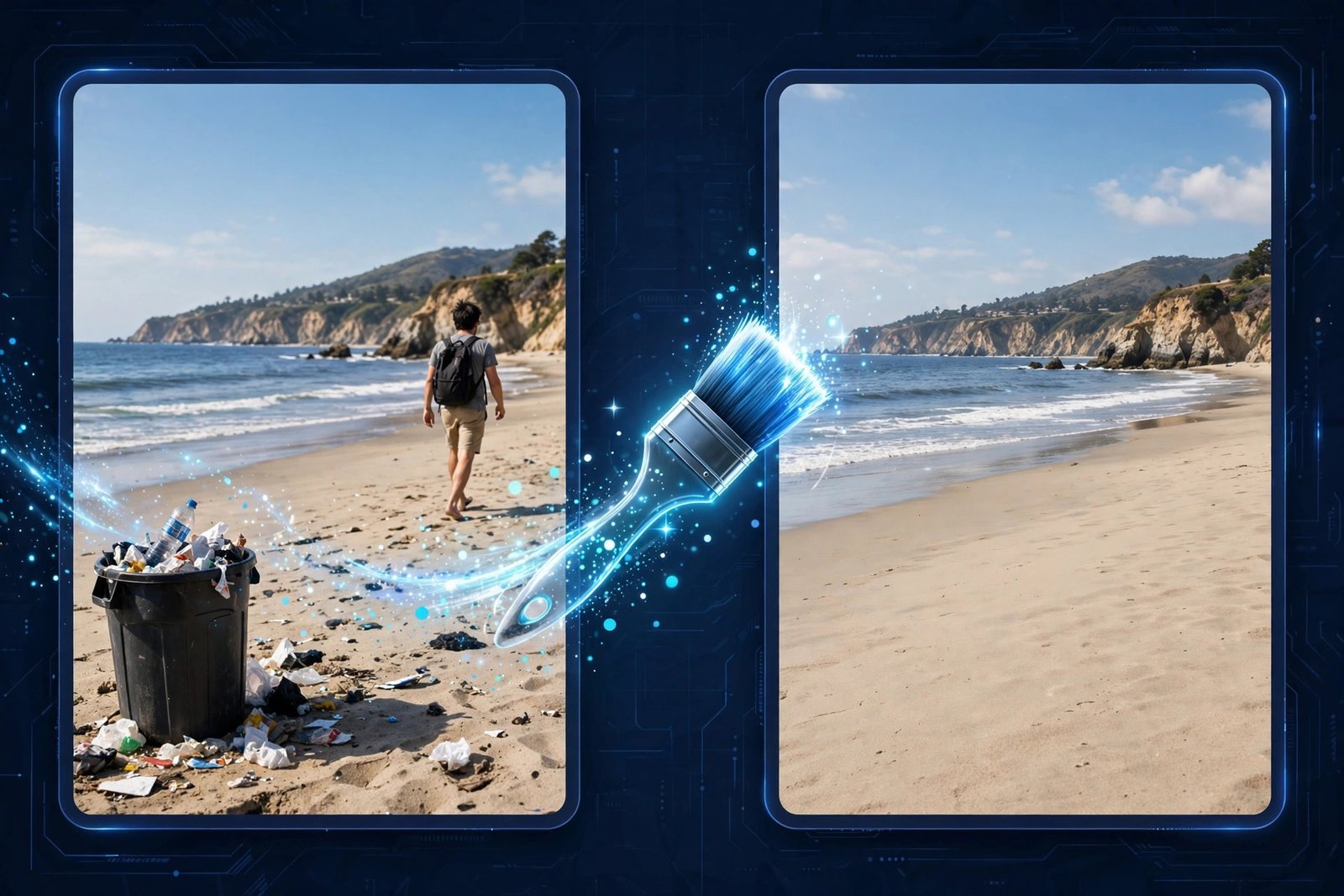
How to Use AI to Edit Photos: 5 Step-by-Step Workflows
Theory is nice; results are better. Here are the exact workflows for the five edits beginners request most. Each one takes minutes once you have done it once.
1. Remove Unwanted Objects (Photobombers, Trash, Distractions)
This is the number-one reason people learn how to edit a photo with AI, and it is the easiest win.
- Open the photo in Photoshop, Canva, or your phone editor.
- Select the object. In Photoshop, use the lasso or object-selection tool to draw around it, leaving a small margin. In Canva, brush over it with Magic Eraser. On a phone, circle it.
- Describe or confirm the removal. In Photoshop’s Generative Fill bar, type “remove” or leave the prompt empty — the model fills the area from surrounding context. In Canva or phone apps, just tap apply.
- Review at 100% zoom. AI fills can smear fine detail. Zoom in and check edges, repeating textures (brick, grass, fabric), and shadows.
- Regenerate if needed. Photoshop offers three variations per generation. If the first looks off, click through the others or regenerate with a slightly more specific prompt like “remove the trash can, keep the brick wall pattern.”
- Fix the leftovers manually with a clone-stamp pass on any remaining artifacts.
Pro tip: Remove large objects in two passes — first the bulk, then a second selection around the edges. The AI blends small areas far more convincingly than huge ones.
2. Upscale a Low-Resolution Photo
Got a photo that is too small to print or looks soft on a big screen? Here is the rescue workflow.
- Start with the best original you have. AI upscaling invents detail; it cannot invent what was never there. Use the highest-resolution source available.
- Denoise first, upscale second. Run Topaz Photo AI’s denoise (or Lightroom’s Denoise) before upscaling — magnifying noise just gives you bigger noise.
- Upscale 2x to 4x. In Topaz, choose the enhancement model that matches your image (Standard for photos, or the face-recovery model for portraits). Remini users: pick “Enhance” and let it work.
- Check faces and text. These are where upscalers hallucinate. Zoom to 100% on every face and any readable text; if a face looks like a different person, dial the enhancement strength down.
- Export at the target size (e.g., 300 DPI for print) and compare side by side with the original before you commit.
3. Replace or Blur a Background
Product sellers, LinkedIn updaters, and portrait shooters all need this one.
- Select the subject. Use Lightroom’s AI subject mask, Canva’s Background Remover, or Photoshop’s “Select Subject.” Verify the mask around hair and edges — this is where 90% of bad background swaps fail.
- Refine the edges. Feather the mask slightly (1–2 pixels) and use “refine hair” style tools where available.
- Choose the new background. Either pick a clean studio-style backdrop, blur the original (portrait mode look), or generate one with a prompt (“soft office background, blurred”).
- Match the light. The number-one giveaway of a fake background swap is mismatched lighting direction and color temperature. Warm up or cool down the background layer until it matches the subject, and add a soft shadow under the subject if the new background implies a floor.
- Check at full size. Look for halos around hair and mismatched grain — add a touch of noise to the new background if the subject photo is grainy.
4. Retouch a Portrait (Without the Plastic Look)
- Do global corrections first: exposure, white balance, and crop in Lightroom or your phone editor.
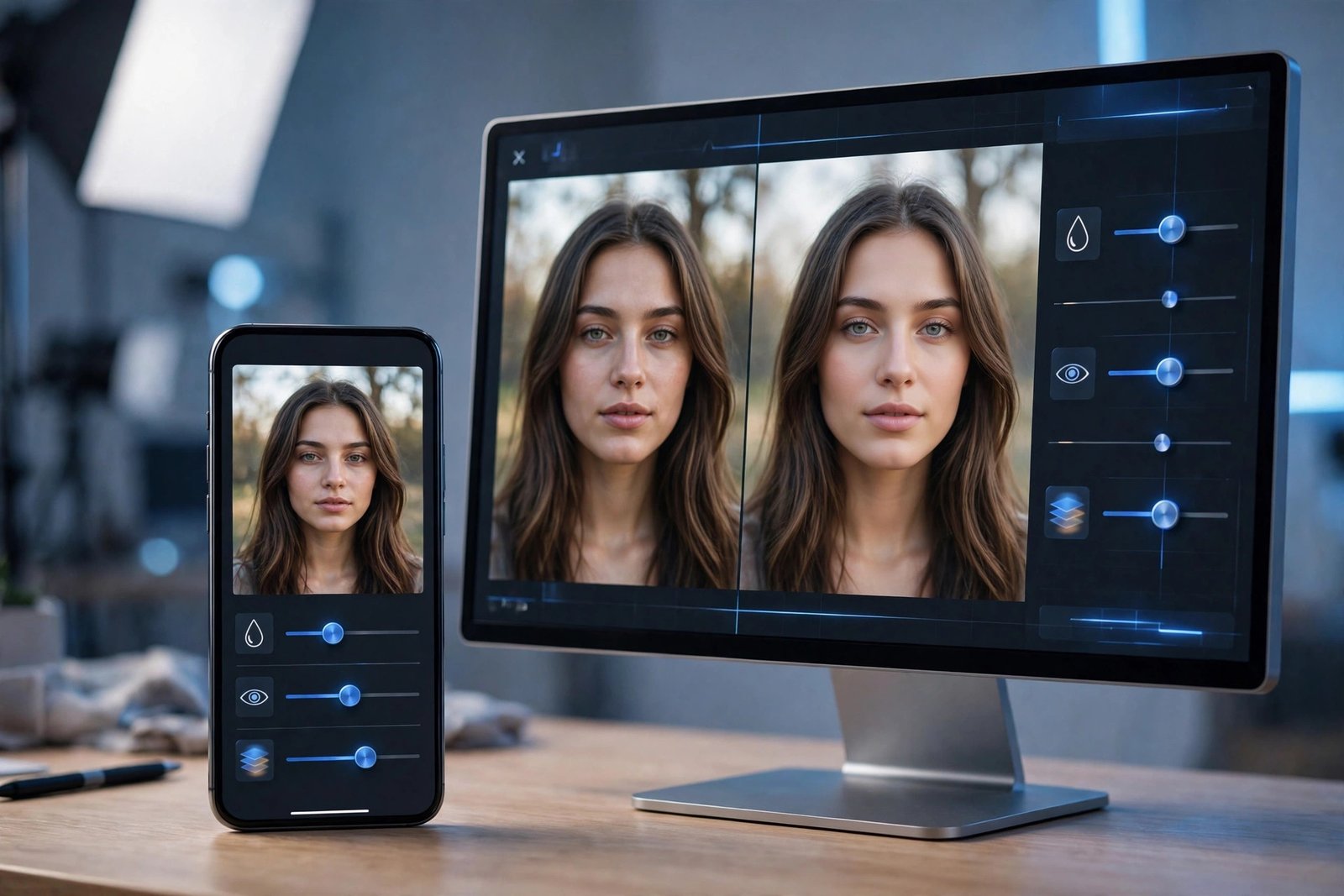
- Use AI skin retouching sparingly. Luminar Neo’s skin tools or Photoshop’s neural filters can even out skin — keep the effect at 30–50% strength. Full strength is what creates the waxy, plastic look everyone hates.
- Remove temporary blemishes only. AI is great at zits and stray hairs; leave moles, freckles, and character lines alone. Over-retouching makes people look like strangers to themselves.
- Brighten eyes and whiten teeth subtly (10–20% adjustments). Small moves read as “great photo”; big moves read as “edited.”
- Compare before/after with a split view. If you cannot tell what changed at a glance, you nailed it.
5. Swap a Sky or Change the Mood
- Open the photo in Luminar Neo (easiest) or Photoshop.
- Select the sky with one click — AI sky selection handles trees and rooftops well now.
- Pick a replacement sky or describe one (“dramatic sunset, pink clouds”).
- Let the tool relight the scene to match — this is the step beginners skip, and it is what sells the effect.
- Adjust the horizon blend so the transition looks natural, especially around fine branches.
9 Beginner Tips That Save You Hours
- Start with a good photo. AI editing multiplies quality; it does not create it. A well-exposed, sharp original beats a heavily “fixed” bad one every time.
- Work non-destructively. Duplicate your layer or keep the original file. You will want to compare — and occasionally undo — more than you expect.
- Describe results, not processes. Prompts like “a clean wooden table, no objects” beat “remove the stuff using content-aware fill.” Tell the AI what the finished area should look like.
- Small selections win. The AI blends a 200-pixel patch far better than a 2000-pixel one. Break big jobs into chunks.
- Always zoom to 100%. Thumbnails lie. Hands, text, repeating patterns, and hair are where AI artifacts hide.
- Match grain and noise. A perfectly smooth AI-filled patch inside a grainy photo screams “edited.” Add matching noise to blend it.
- Batch the boring stuff. If you have 200 product photos needing the same background, build the workflow once — or automate repetitive tasks around it — instead of clicking through each one by hand.
- Keep a “before” folder. Clients, and your future self, appreciate proof of the transformation. It is also great portfolio material.
- Know when to stop. The goal is a photo that looks naturally great, not a photo that looks impressively edited. If someone’s first reaction is “wow, what app did you use,” you went too far.
Frequently Asked Questions
Can AI edit photos for free?
Yes — with limits. Canva’s free tier, Google Photos Magic Editor, and Apple’s Clean Up handle object removal and basic enhancements at no cost. Free tiers usually cap resolution, add watermarks on some exports, or limit how many AI generations you get per month. For occasional edits, free is genuinely enough; for daily work, a paid plan pays for itself quickly.
Will AI-edited photos look fake?
Only if you overdo it. Modern AI fills, sky swaps, and upscales are undetectable when done carefully — matched lighting, subtle strength settings, and a 100% zoom check are the difference. The “fake” look almost always comes from mismatched light direction, over-smoothed skin, or hallucinated faces in upscaled portraits. Follow the workflows above and your edits will pass the glance test.
Is it legal to edit photos with AI?
Editing your own photos is fine. The legal questions start when you edit other people’s work: removing watermarks, altering someone’s likeness misleadingly, or generating fake scenes presented as real can violate copyright, publicity rights, or platform policies. Also check the terms of your AI tool — some grant the provider a license to images you upload. When in doubt, edit only photos you own or have rights to.
What is the easiest AI photo editor for a complete beginner?
Canva, by a clear margin. Upload, brush, click — no layers, no jargon, and the free tier covers the basics. Once you outgrow it, Luminar Neo is the natural next step before committing to Photoshop. And if your main need is generating images from scratch rather than editing photos, our guide to the best AI image tool for beginners covers that side of the workflow.
The Bottom Line
Knowing how to edit a photo with AI in 2026 is less about mastering software and more about mastering judgment: picking the right tool, writing a clear instruction, and knowing when the result is done. Start with Canva or your phone editor for quick wins, move to Lightroom when you have libraries to manage, and reach for Photoshop’s Generative Fill when precision matters. Do the five workflows above once each, and you will already edit faster than most people who have used Photoshop for years.
And if you find yourself spending hours on repetitive edits — batch resizing, renaming, organizing — that is a sign to look beyond the editor itself. Tools like Muse AI can take whole repetitive workflows off your plate, and the best browser automation tools can handle the web-based parts of your pipeline. Edit smarter, not longer.
SPONSORED PICK
🏆 Best Pick for Getting Things Done: Muse AI
Stop doing everything manually — meet Muse, your personal AI agent that handles tasks end-to-end so you can focus on work that matters.
Join in the next 48 hours with my code 1AR2WH and YOU unlock 1 BILLION Muse tokens.



Join the discussion
Have a question or a perspective to share?