

AI Email Management Tools: Reach Inbox Zero (2026)
The average professional spends hours every day inside their inbox — triaging, archiving, drafting replies, and hunting for that one message from three weeks ago. AI email management tools attack this problem directly: they sort incoming mail automatically, draft replies in your voice, summarize long threads, and surface the messages that actually need you. The goal is not just a tidy inbox but a calmer workday where email serves you instead of interrupting you.
This guide explains how AI email management works in 2026, gives you a practical system for reaching and maintaining inbox zero, compares the main categories of tools, and covers the privacy questions you should ask before connecting an AI to your mailbox.
How AI Email Management Tools Work
Modern AI email tools connect to your mailbox (Gmail, Outlook, and others) and apply language models to the stream of messages. The core capabilities fall into five groups:
- Smart triage: incoming mail is categorized — newsletters, receipts, notifications, personal, urgent — and low-value mail can be auto-archived or batched into digests.
- Priority detection: the AI learns which senders and topics matter to you and surfaces the messages that need a response, pushing the rest aside.
- Draft generation: one-click reply drafts written in your tone, which you review and send. Some tools handle routine replies (scheduling, confirmations) nearly autonomously.
- Summarization: long threads and newsletters condensed to the key points, so you can stay informed in a fraction of the time.
- Search and recall: natural-language search (“find the invoice from Acme last month”) that understands intent instead of requiring exact keywords.
Under the hood, most tools combine classification models with generative models: the classifier decides what a message is and how urgent it is, while the generator writes drafts and summaries. The best tools learn from your corrections — every time you re-categorize a message or rewrite a draft, the system gets a little better at matching your judgment.
The Inbox Zero System: A Step-by-Step Setup
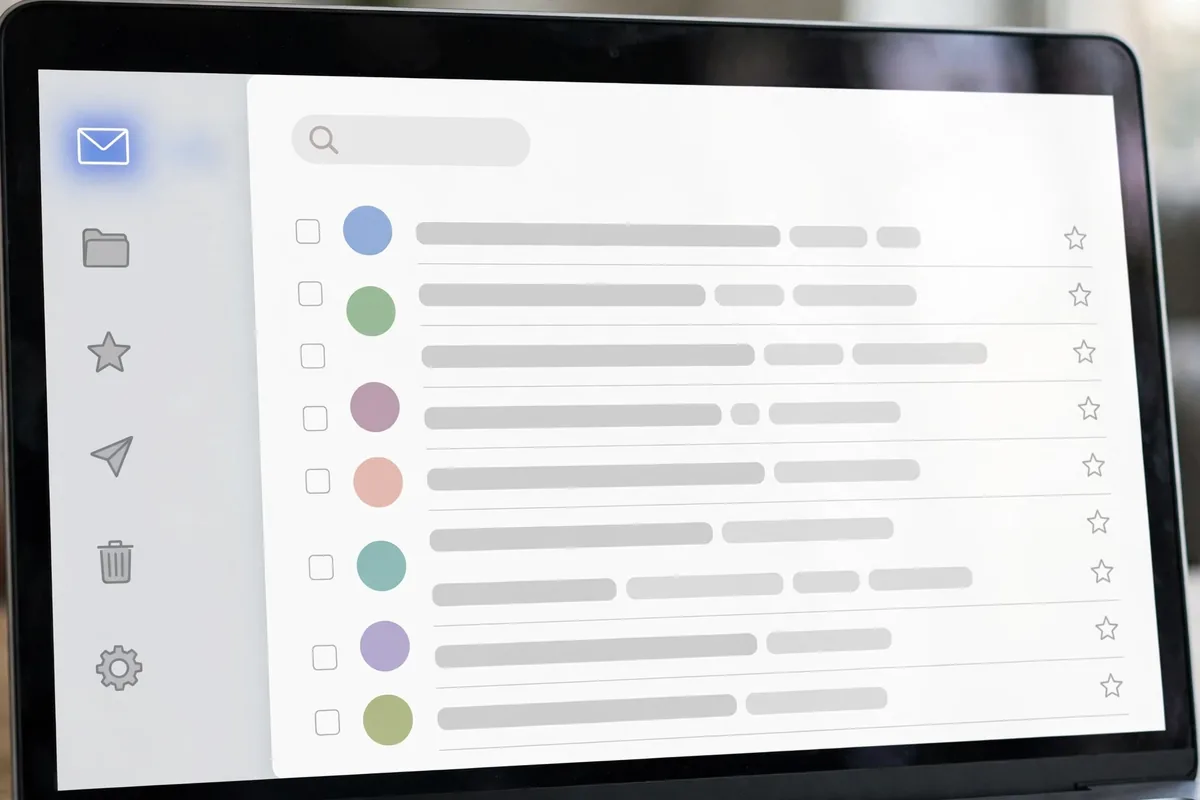
Inbox zero does not mean answering every email instantly; it means every email has been processed and has a home. Here is how to set that up with AI assistance.
Step 1: Audit your inbox for one week
Before changing anything, observe. For a few days, notice what fills your inbox: which senders dominate, how much is genuinely actionable, and what you keep postponing. This audit tells you which categories your AI rules should handle first — usually newsletters, notifications, and receipts.
Step 2: Connect your AI email tool and set up categories
Connect the tool to your mailbox and define your categories: Action Needed, Waiting On, FYI/Archive, Newsletters, and Receipts are a solid starting set. Let the AI auto-suggest categories from your mail, then adjust the names and rules to match how you actually think.
Step 3: Build auto-triage rules for the obvious stuff
Start with the mail that never needs your attention: promotional newsletters go to a reading folder or a weekly digest, receipts get labeled and archived, automated notifications get filtered. AI tools can propose these rules by scanning your history — approve them in bulk, then refine.
Step 4: Train the priority inbox
Mark a few dozen messages as important or not important so the AI learns your patterns. Be deliberate in the first week: correct misclassifications promptly. This training investment pays off for months — a well-trained priority filter is the single biggest time saver in the system.
Step 5: Set up reply drafts and templates
Identify the replies you write over and over — meeting scheduling, project updates, polite declines — and let the AI draft them. Review every draft before sending in the first weeks; once you trust the tone, you will still want to glance at anything going to clients or executives.
Step 6: Schedule two processing sessions a day
Technology alone does not create inbox zero; habits do. Process email in two batches — late morning and late afternoon, for example — instead of living in the inbox all day. During a session: delete or archive, delegate, reply if it takes under two minutes, or file it into Action Needed with a deadline. The AI handles the sorting; you handle the decisions.
Step 7: Maintain with a weekly review
Once a week, scan your categories for anything misfiled, unsubscribe from newsletters you never read (AI tools often have one-click unsubscribe), and check the Waiting On folder for items that need a nudge. Fifteen minutes a week keeps the system from decaying.
AI Email Management Tools Compared
The market has three main categories. Understanding which one you need saves you from paying for features you will never use.
| Category | What it does | Best for | Examples of approach | Watch out for |
|---|---|---|---|---|
| AI email clients | Full inbox replacement with AI triage built in | People who want one app for everything | Apps with priority inboxes, snooze, and send-later | Switching cost; team compatibility |
| Inbox add-ons / extensions | AI features layered onto Gmail or Outlook | People who must stay in their current client | Drafting, summarization, and follow-up reminders | Feature overlap with native AI features |
| Automation platforms | Rules-based routing plus AI classification | Teams with shared inboxes (support, sales) | Auto-assignment, SLAs, and canned AI replies | Setup complexity; overkill for personal use |
For most individuals, an AI email client or a well-chosen add-on is the right starting point. Teams managing shared inboxes (support@, sales@) benefit more from automation platforms where AI triage feeds into assignment and reporting.
Writing Better Replies With AI
AI-drafted replies are the feature people are most skeptical of — and the one that saves the most time once trusted. The key is calibration. Start by letting the AI draft only low-stakes replies: scheduling confirmations, quick acknowledgments, routine follow-ups. Review each draft and edit freely; the edits teach the tool your voice.
As trust builds, expand to medium-stakes mail: project updates, vendor questions, internal coordination. Keep high-stakes mail — negotiations, difficult feedback, anything emotional — fully human, using AI at most for a first draft you then rewrite substantially. A good rule: if the reply could affect a relationship, your words should dominate the final version.
Tone control matters. Most tools let you set a default tone (professional, friendly, concise) and adjust per draft. Concise is usually the right default for business email — the AI’s tendency to be wordy is its most common flaw, and a “make it shorter” instruction fixes most drafts instantly.
Taming Newsletters and Notifications

Newsletters are the silent inbox killer: individually harmless, collectively overwhelming. AI tools handle them well with a three-part approach. First, batch them: instead of arriving all day, newsletters collect into a single daily or weekly digest you read on your schedule. Second, summarize: the AI extracts the key points so you can skim ten newsletters in the time one used to take. Third, prune: tools that track which newsletters you actually open make it easy to unsubscribe from the rest in bulk.
Apply the same logic to notifications — social media alerts, system updates, marketing pings. Almost none of these need real-time delivery. Route them to a batched folder and check it once a day, or turn off the noisiest ones entirely. Every notification you batch is an interruption you prevented.
AI Email Management Tools and Privacy: What to Check
Connecting an AI to your email means granting access to some of your most sensitive data. This deserves real scrutiny, not a skipped terms-of-service screen.
How the tool accesses your mail
Prefer tools that use official OAuth connections (the “Sign in with Google” / Microsoft permission screen) over tools that ask for your password. OAuth lets you see exactly which permissions you granted and revoke them anytime. Be wary of any service that cannot clearly explain how it connects.
Whether your data trains their models
This is the central question. Some tools explicitly exclude customer email content from model training; others are vague. Look for a clear statement in the privacy policy, and prefer business or enterprise tiers where data-use guarantees are typically stronger. If a tool cannot answer this clearly, that is your answer.
Data retention and deletion
Check how long the tool stores your messages and whether you can request deletion. Also check where data is processed — some organizations need data to stay in specific regions for compliance. If you handle client data under contracts or regulations, get your IT or legal team involved before connecting anything.
Practical precautions
Even with a trustworthy tool, practice good hygiene: do not grant broader permissions than needed, revoke access for tools you stop using, and consider keeping your most sensitive correspondence (legal, medical, financial) out of AI-processed folders where the tool allows exclusions.
Common Mistakes That Break the System
- Over-automating too fast: turning on aggressive auto-archiving before the AI understands your patterns leads to missed messages. Start conservative and tighten gradually.
- Never training the filter: the AI only learns from your corrections. If you silently fix misfiled mail without telling the tool, it keeps making the same mistakes.
- Treating AI drafts as final: sending unreviewed drafts, especially early on, risks tone-deaf replies. Review everything until the tool has earned your trust — and keep reviewing high-stakes mail forever.
- Keeping the inbox open all day: no tool can protect you from yourself. Batched processing sessions are what make the system work; constant checking reintroduces the interruptions you just eliminated.
- Ignoring the unsubscribe step: AI triage manages unwanted mail, but unsubscribing removes it at the source. Do both.
Frequently Asked Questions

Can AI email management tools really get me to inbox zero?
They can get you most of the way there by automating the sorting, summarizing, and drafting that consumes the bulk of inbox time. But inbox zero is ultimately a behavior: you still need processing sessions and the discipline to decide on each message. Think of the AI as removing 70–80% of the mechanical work so the remaining decisions are manageable.
Do AI email tools work with Gmail and Outlook?
Yes — Gmail and Outlook (Microsoft 365) are the two best-supported platforms, and nearly every AI email tool connects to both via OAuth. Support for other providers varies, so check compatibility if you use a different service. Most tools work alongside your existing client rather than replacing it, which makes trying them low-risk.
Will AI replies sound like me?
Surprisingly well, after training — but not immediately. Early drafts tend to be generic and slightly formal. The tool improves as you edit its drafts and as you set tone preferences. Most users report that after a few weeks of corrections, routine drafts need only minor tweaks. For important messages, always rewrite in your own words.
Are AI email management tools safe for work email?
For typical business email, reputable tools with clear privacy policies and OAuth connections are widely used. For regulated industries or sensitive client data, check with your IT department first — many organizations have approved-tool lists, and some require enterprise tiers with stronger data guarantees. When in doubt, ask before connecting.
How much do AI email management tools cost?
Pricing varies widely: some capable tools are free or have generous free tiers, while premium clients and team platforms charge monthly per-user fees. Many professionals start with a free tier or a low-cost add-on and upgrade only when the time savings clearly justify it. Evaluate based on hours saved per week, not feature lists.
What happens to my data if I cancel?
Reputable tools let you revoke access and request deletion of your stored data. Because most tools work as a layer over your existing mailbox rather than replacing it, your actual emails stay in Gmail or Outlook — canceling mainly removes the AI’s copy and its learned preferences. Always revoke the OAuth grant after canceling so the tool cannot reconnect.
Start This Week
You do not need a perfect system to begin — you need a first step. This week: pick one AI email tool with a free tier, connect it, and let it categorize your inbox for a few days while you correct its mistakes. Set up auto-triage for newsletters and receipts, and try AI-drafted replies on low-stakes messages. By next week you will know whether the time savings are real for you, and you will have the training data to make the system genuinely yours. Inbox zero is not a destination you reach once; it is a system you maintain — and AI finally makes the maintenance cheap enough to stick.
Related: best AI email assistants of 2026




Join the discussion
Have a question or a perspective to share?